



Your Google Photos library holds every shot you’ve captured — organized, backed up, and ready to go.
But every time you want to display those photos on your WordPress site, you’re stuck downloading them, re-uploading them, and juggling files between apps.
The new Google Photos Addon for Envira Gallery fixes that.
Google Photos Addon: Your Entire Library, One Click Away
The Google Photos Addon connects your Google Photos account directly to Envira Gallery. Browse and select photos from your library right inside WordPress — they import instantly and are automatically saved to your WordPress Media Library.
That means you don’t have to download, re-upload, or switch between apps.
Why Use the Google Photos Addon?
- No downloading or re-uploading. Select photos straight from your Google Photos library and they appear in your Envira gallery instantly — no file management between apps.
- Import up to 2,000 photos at once. The Google Photos Picker lets you select large batches in a single session, so building a full gallery takes minutes instead of hours.
- Photos save to your Media Library automatically. Every imported photo is stored in your WordPress Media Library — ready to use in galleries, pages, or posts across your site.
- Connect up to three accounts. Link separate personal and client Google Photos accounts and switch between them right inside the gallery editor.
Before getting started, make sure the Google Photos Addon is enabled. Go to Envira Gallery → Addons, find the Google Photos Addon, and click Activate.
Step 1: Connect Your Google Photos Account
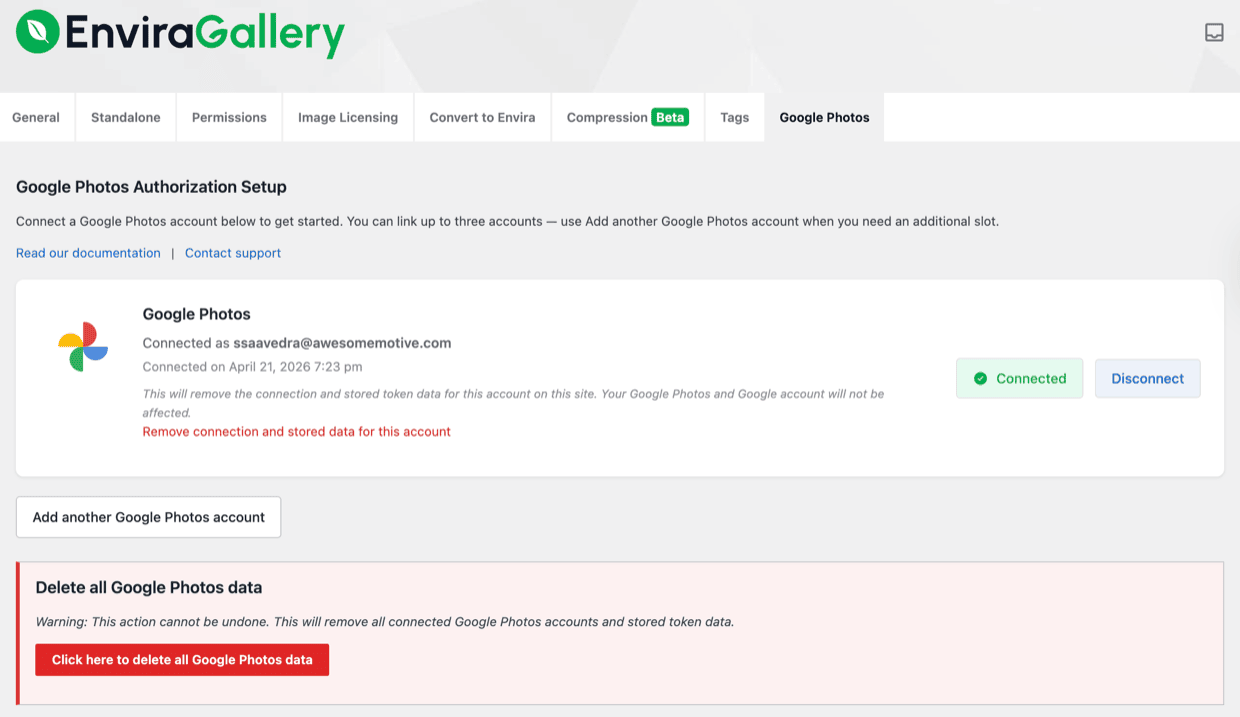
Head to Envira Gallery → Settings and click the Google Photos tab.
Click Continue with Google, complete the OAuth flow, and your account is linked. You can connect up to three Google Photos accounts — handy if you manage separate accounts for personal work and client shoots.
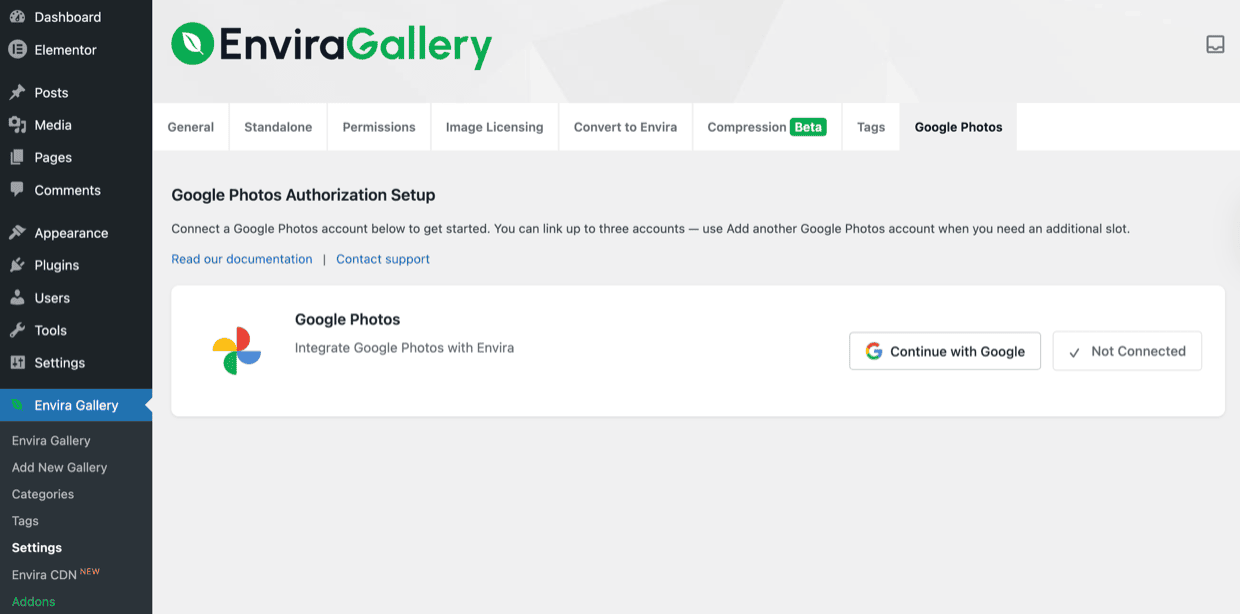
Once the OAuth flow completes, your connected account appears in Settings with a Disconnect option — confirming the link is active.
Step 2: Select Photos from Your Library
Create a new gallery or open an existing one. Under External Gallery, select Google Photos as your gallery type.
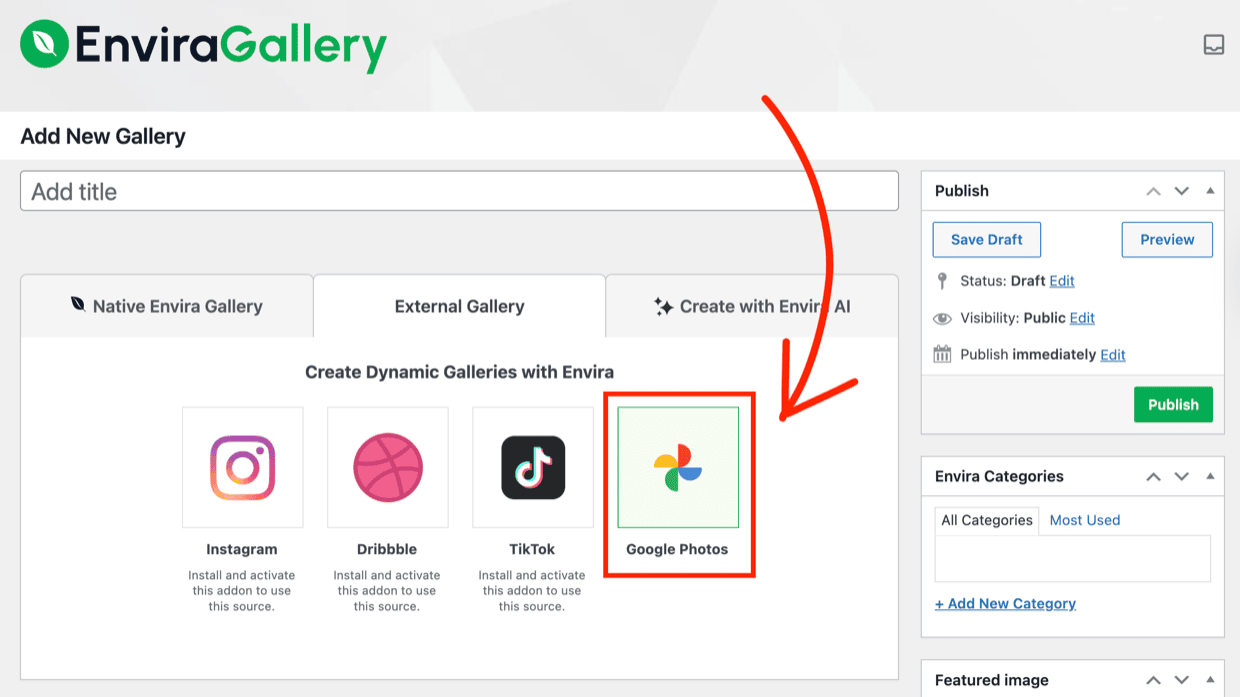
Once you select Google Photos, the editor shows the photo selection controls alongside an account switcher — useful if you’ve connected more than one account.
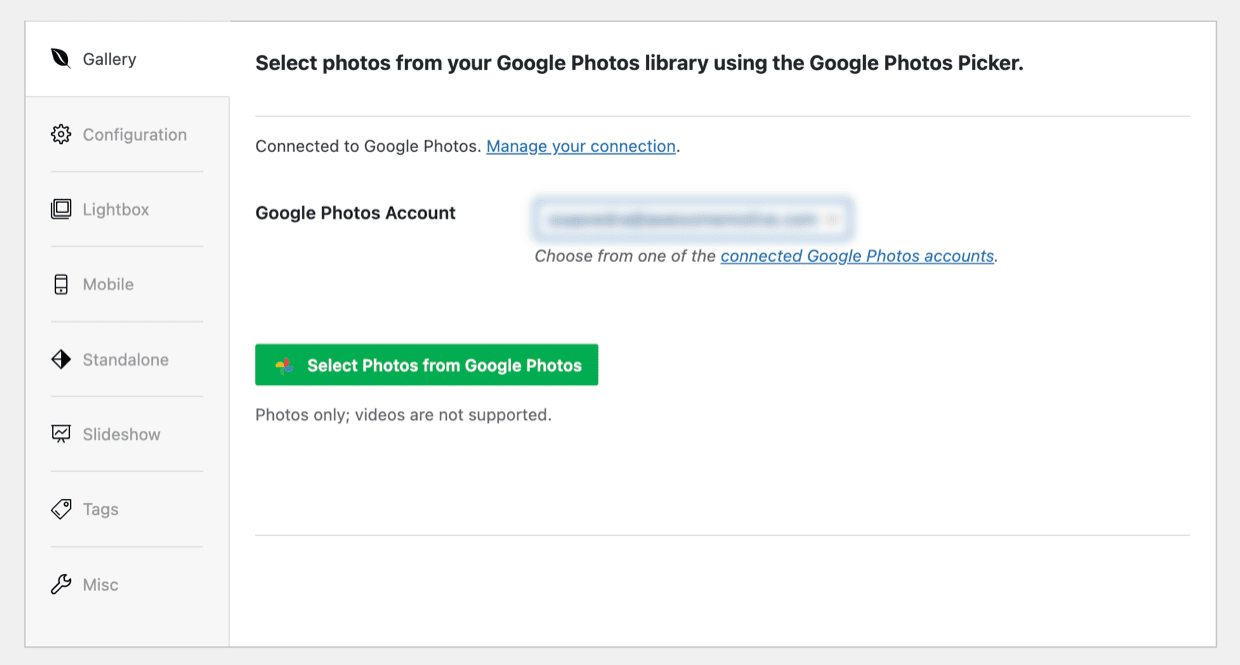
Click Select Photos from Google Photos. The editor displays step-by-step instructions while it waits for your selection in the picker.
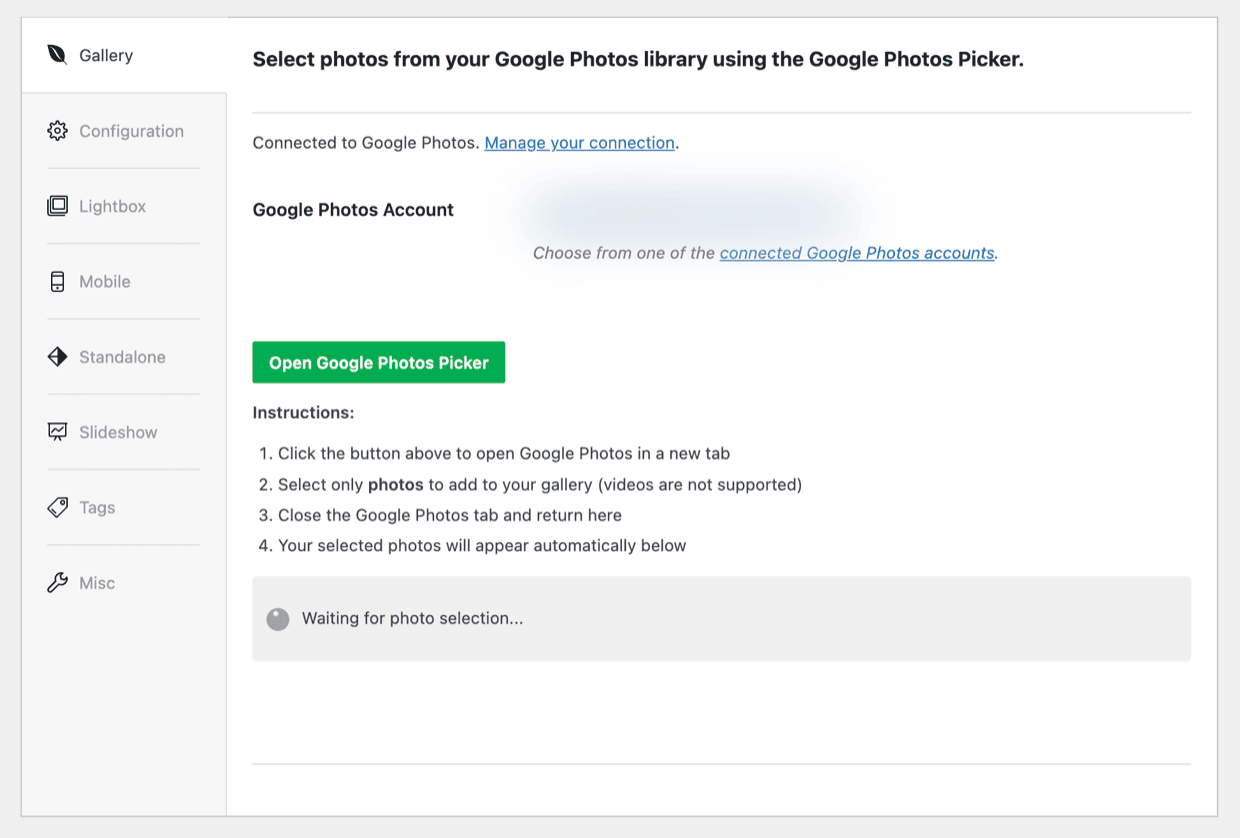
The Google Photos Picker opens in a new tab — this sidesteps popup blockers. Browse or search your library, select up to 2,000 photos, and click Done.
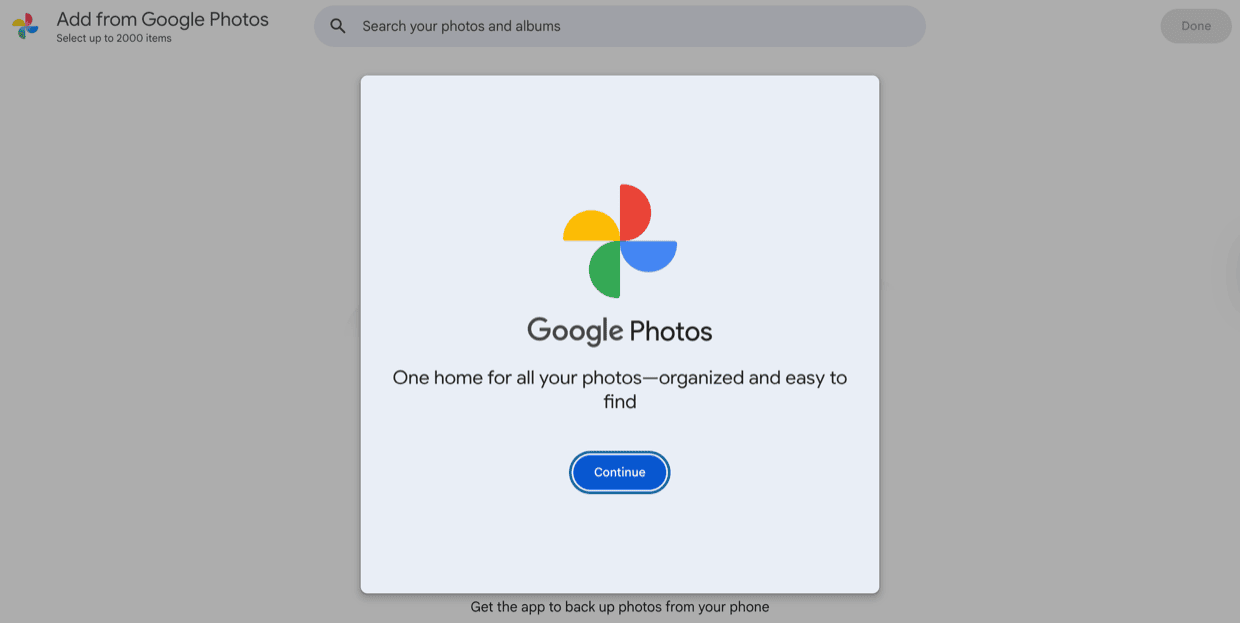
Your photos import immediately and are saved directly to your WordPress Media Library.
Get the Google Photos Addon Today
The Google Photos Addon is available on Envira Gallery Pro and above.
If you’re on the Lite plan, you’ll see Google Photos as a gallery type in the selector — upgrade to Pro to unlock the full integration and start importing from your library.
Your Google Photos Library, Right in Your WordPress Gallery
The Google Photos Addon is included with Envira Gallery Pro and above. Upgrade today and build your first Google Photos gallery in minutes.
That’s it! I hope this article helped you discover the easiest way to bring your Google Photos library to your WordPress site. If you liked this article, check out the following resources:
- NEW: TikTok Addon with Auto-Syncing + Spread Harmony Layout
- NEW Envira Features: Highlight Grid Layout & Dribbble Addon
- How to Integrate Google Drive with Your WordPress Media Library
- NEW Comments Addon: Encourage Feedback & Foster Engagement!
- How to Make a WordPress Photography Website in 5 Easy Steps
Don’t forget to check out our blog and follow us on X (Twitter) for the best photography tips, resources, and WordPress tutorials.