





You’ve got photos people would pay for. Until now, actually selling them meant wrestling with WooCommerce or bolting on a whole separate store, even if all you wanted was to sell a few images straight from your gallery. Way too much setup for something that should take five minutes.
That’s exactly what Envira Payments is built for. It drops Stripe-powered checkout straight into your galleries, so the moment a visitor falls for one of your photos, they can buy it right there, without ever leaving the page they’re on. No separate store to build, no extra plugin to configure, no developer on speed dial.
Envira Payments: Selling Made Simple
Envira Payments turns any gallery or single image into something visitors can buy in just a couple of clicks. Connect your Stripe account once, set a price, and your galleries become a storefront, no WooCommerce to configure, no separate store to build, no extra logins for you or your customers to manage.
Setting Up Envira Payments
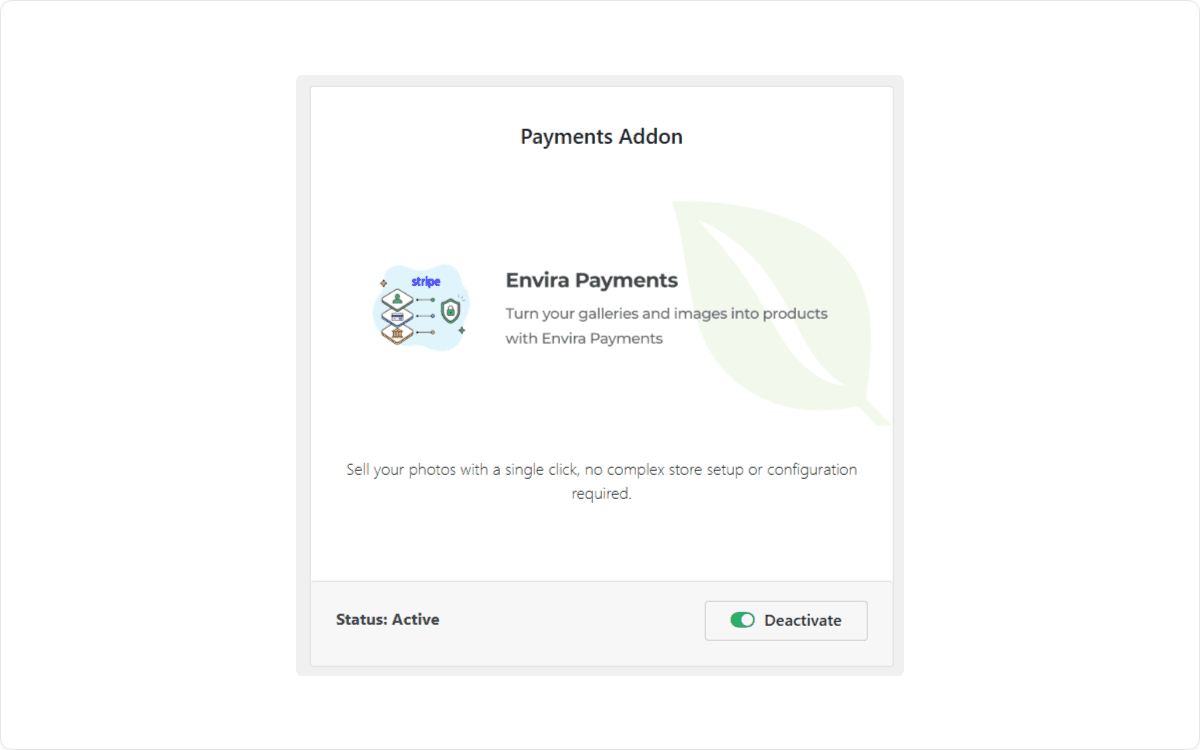
Getting started takes two steps. First, activate the Payments addon from your Envira Gallery add-ons page, just like any other Envira addon.
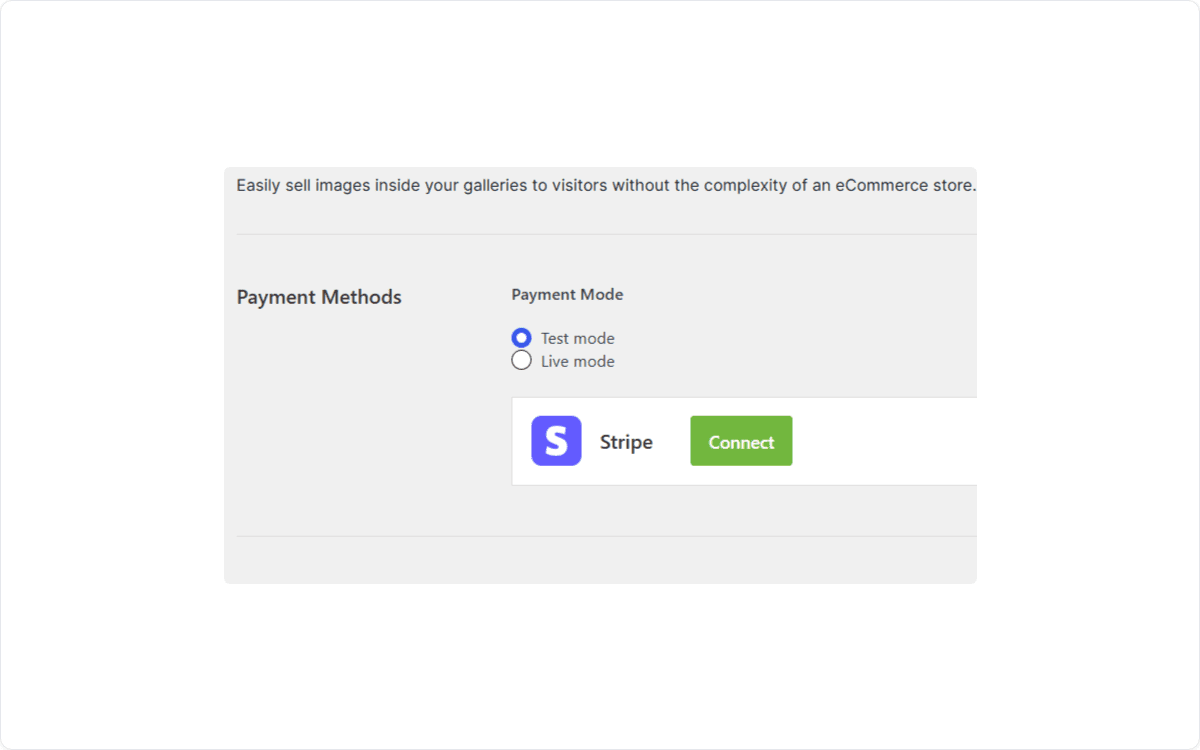
Next, head to your Envira Gallery Settings → Payments tab and connect your Stripe account under Payment Methods. You can also get there from inside a gallery’s own Payments tab, using the “Connect your Stripe account here” link.
Don’t have a Stripe account yet? No problem, Stripe walks you through creating one for free as part of that same connection step.
Turning On Payments for a Gallery
With Stripe connected, open any gallery’s settings and switch to the new Payments tab. Turn on Envira Payments, then choose where the purchase button shows up, on the gallery grid, inside the lightbox, or both, and customize the button text itself to say whatever fits your site, like “Purchase This Image” or “Buy Now.”
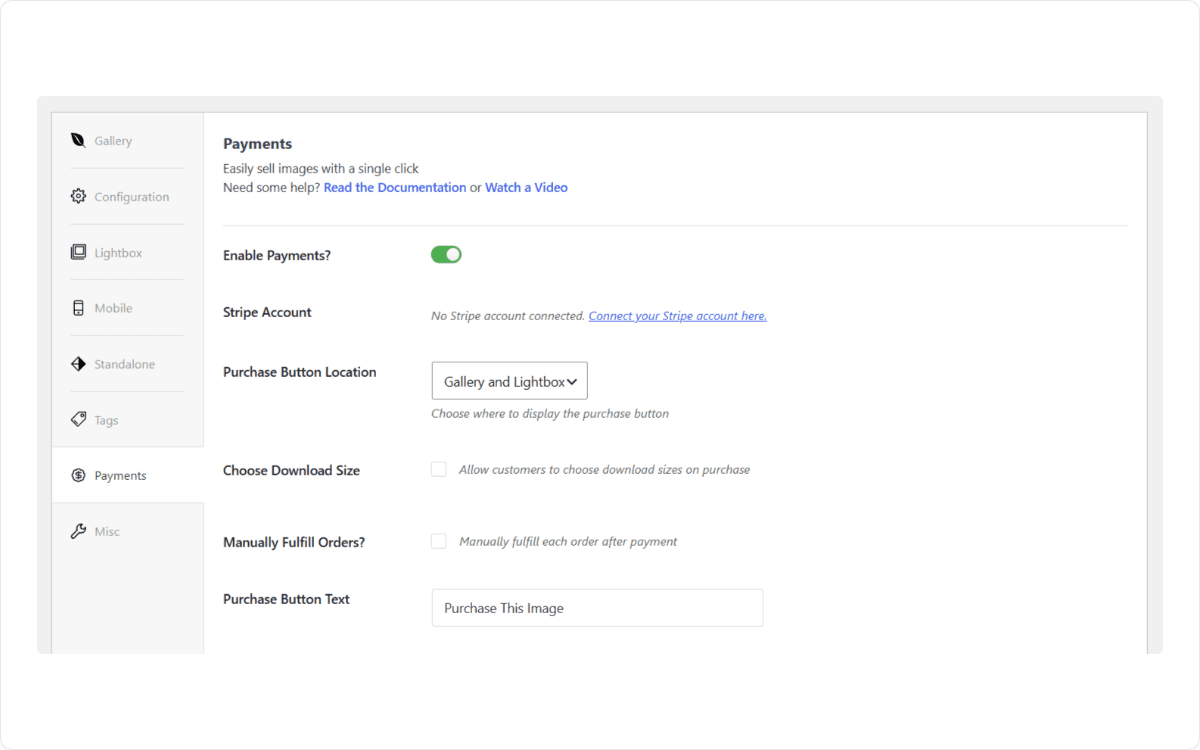
From that same tab, you can let customers choose their download size before checkout and decide whether orders fulfill automatically or need a manual review first.
Setting a Price for Your Images
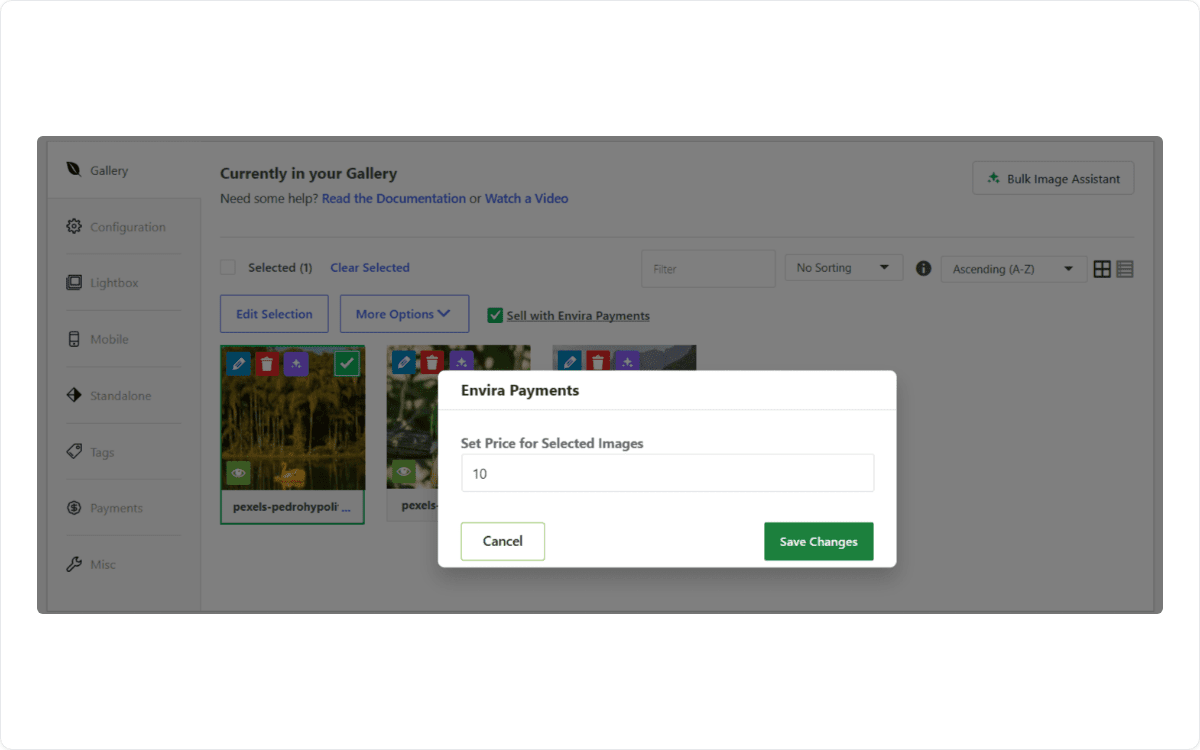
Prices are set right in the gallery editor. Select one image or several using the checkbox on each thumbnail, then click Sell with Envira Payments. A popup lets you set a price for everything you’ve selected, so you can price a whole gallery in one go or give individual images their own price.
What Customers See at Checkout
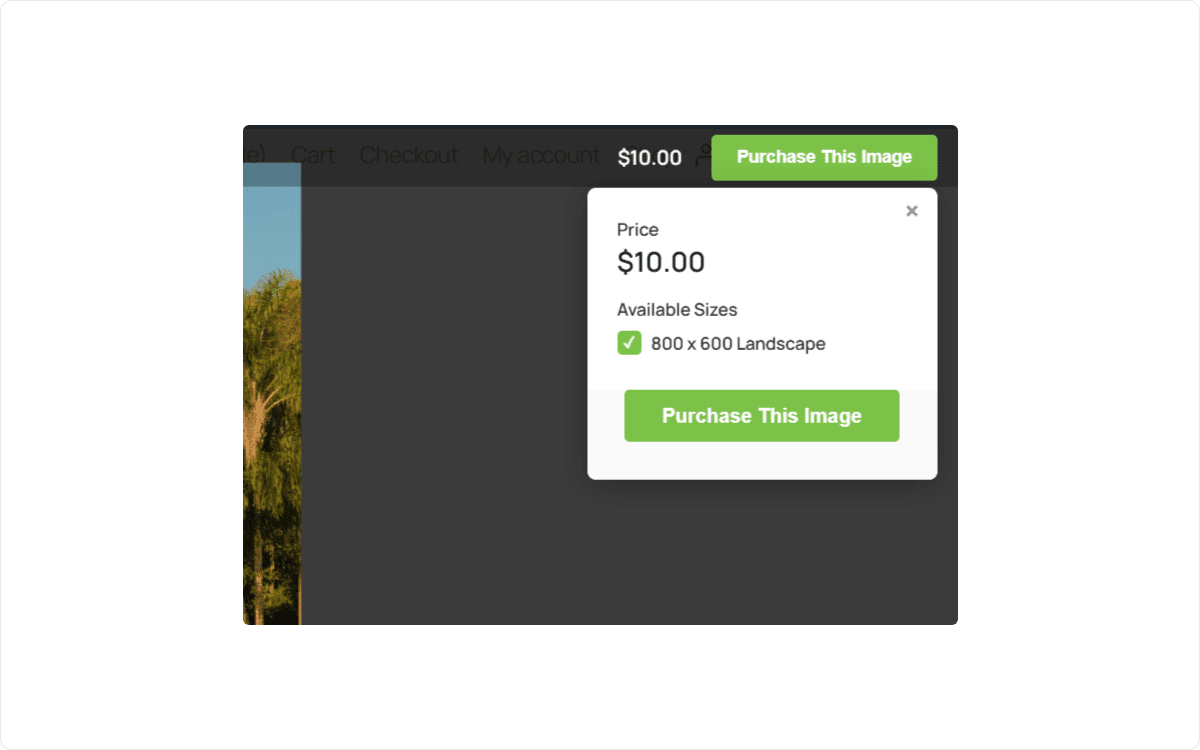
Once an image has a price, visitors see a Purchase This Image button wherever you placed it. Clicking it opens a quick popup right in the lightbox with the price and any available download sizes, so shoppers know exactly what they’re getting before they buy.
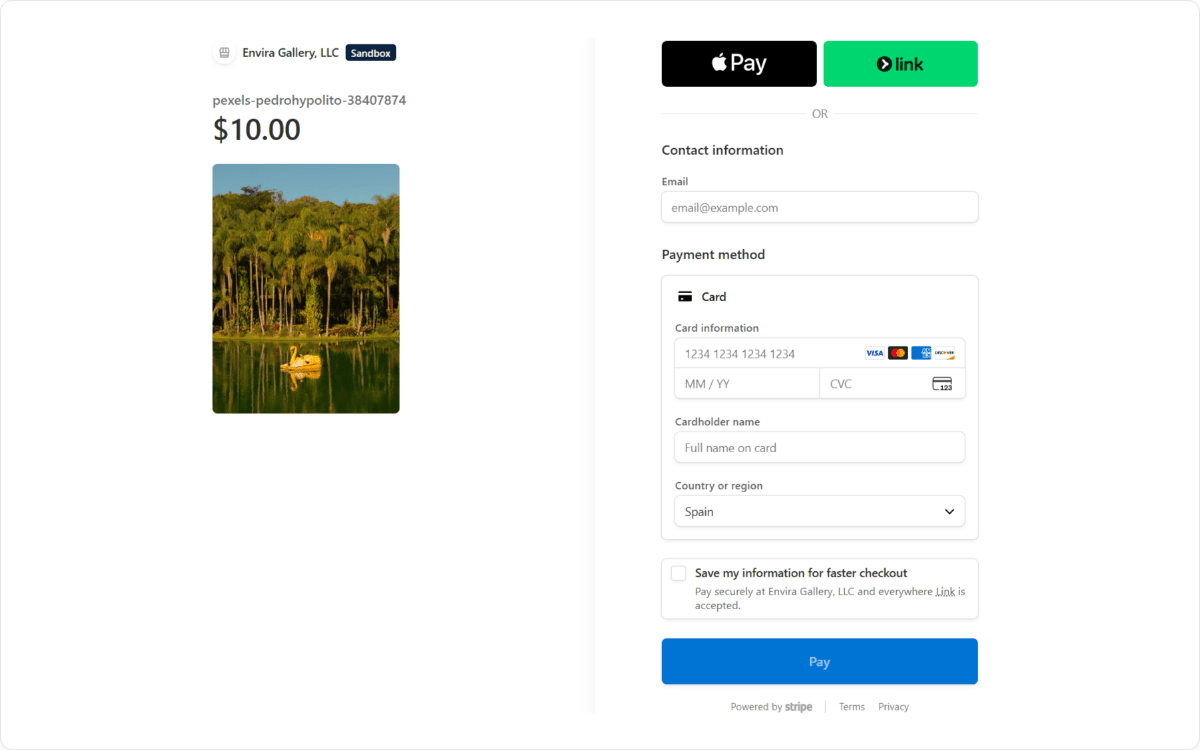
From there, checkout happens on a secure, Stripe-hosted page. Customers can pay by card, Apple Pay, or Link, without ever creating an account on your site.
A Confirmation Email That Matches Your Brand
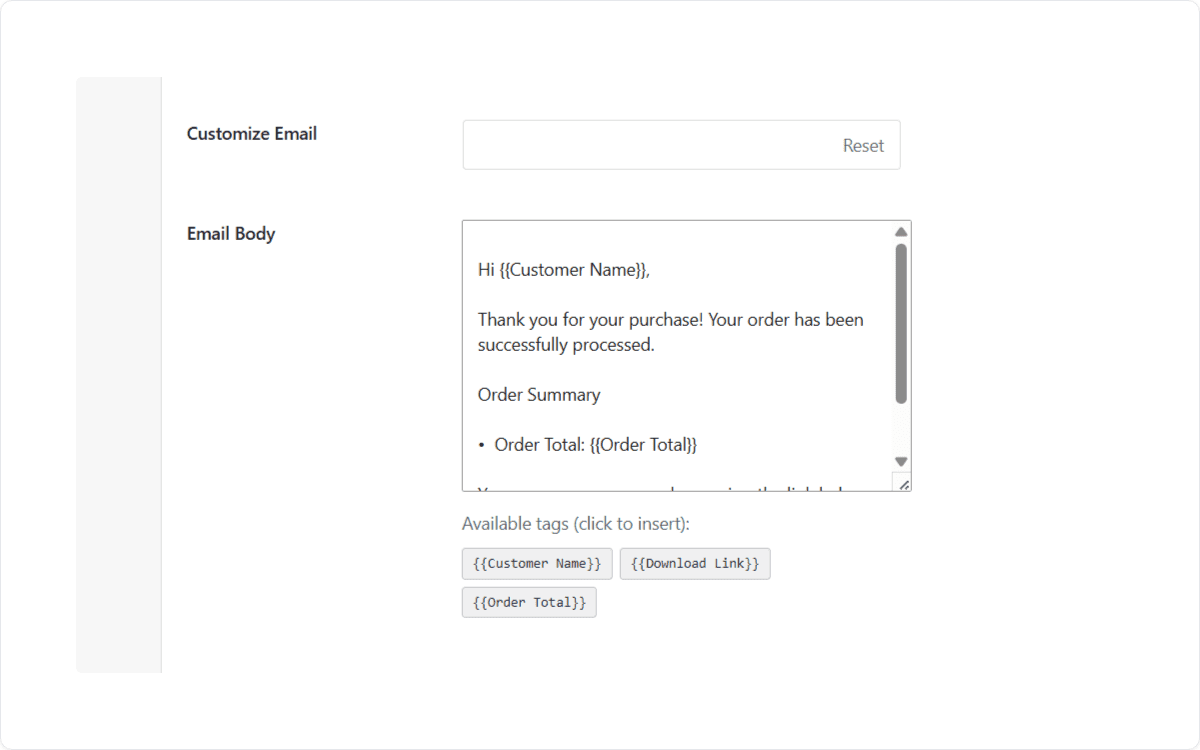
Once a customer checks out, Envira Payments sends them a confirmation email automatically, and you can customize exactly what it says. Edit the subject line and email body, and pull in details like the customer’s name, their order total, and their download link using simple merge tags, no coding required.
Every order also lands in one place. Open the new Payments tab in your Envira Gallery menu, and you’ll see every sale in a single table: order ID, customer name and email, the image and gallery it came from, amount, status, and date. Filter by status, completed, refunded, pending, or canceled, to find exactly what you’re looking for without ever opening Stripe.
Get Started with Envira Payments Today
Envira Payments is available now on every paid Envira Gallery plan. Activate the Payments addon and it appears in your Envira Gallery settings, ready to connect to Stripe. On Pro and above Envira takes no transaction fee at all. On other paid plans Envira adds a 5% fee on top of the standard Stripe fee, so upgrading to Pro pays for itself once you are selling regularly.
Try Envira Payments Today
Available on every paid plan, with no Envira transaction fee on Pro and above. Sell images straight from your galleries with Stripe-powered checkout, no WooCommerce required.
This release also ships alongside Envira Gallery 1.15.0 and Envira Albums 1.9.2, along with security hardening updates across the wider Envira family of plugins. As always, we recommend keeping every Envira plugin on your site updated to the latest version.
Want some ideas for what to sell first? Here are some guides to help:
- Tutorial: How to Sell Photos on WordPress (Beginner-Friendly)
- How to Price Photography Services: Packages, Rates, & More
- 10+ Best Places to Sell Photos Online and Make Money
- WordPress eCommerce Plugins to Help You Sell Your Photos
Want to see what else is new in Envira Gallery? Check out our full blog for the latest tutorials, feature releases, and photography tips.