


Ever run a photo contest, collect guest photos after a wedding, or put together a gallery for a club or a community? Then you know the part nobody enjoys. The photos turn up as email attachments, WeTransfer links and shared folders, and you end up uploading every single one by hand.
This release hands that job over to your visitors, and gives your photos one more way to travel while it’s at it.
Frontend Submissions: Let Visitors Add Photos to Your Galleries
The new Frontend Submissions addon puts an upload form on your site, so visitors can add their own photos to a gallery you choose. Contest entries, guest shots from a wedding, customer photos of your products, submissions from your club or your readers: they all land in your gallery without you touching a single file.
Nobody needs a WordPress account to send you a photo, and nothing goes public until you say so.
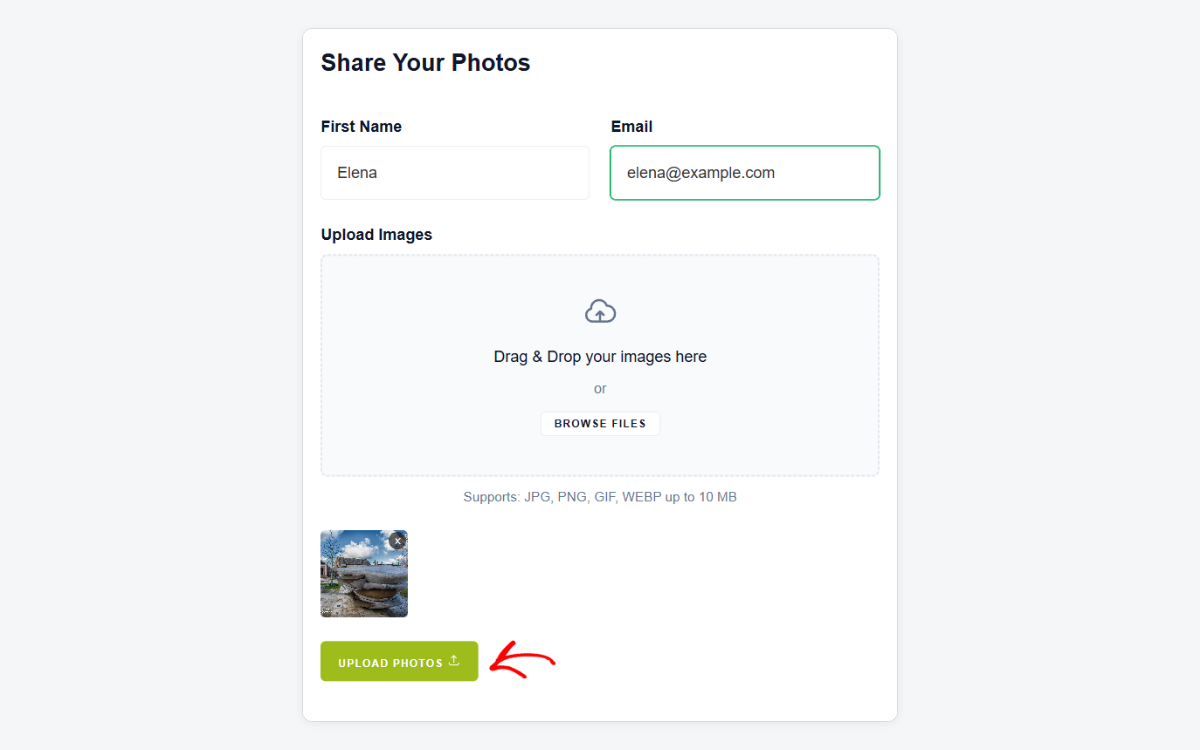
Setting Up Frontend Submissions
Update first. Everything below arrives with Envira Gallery 1.17.0 and its add-ons, so run your updates from the Plugins screen before you go looking for any of it. Nothing new appears until you do.
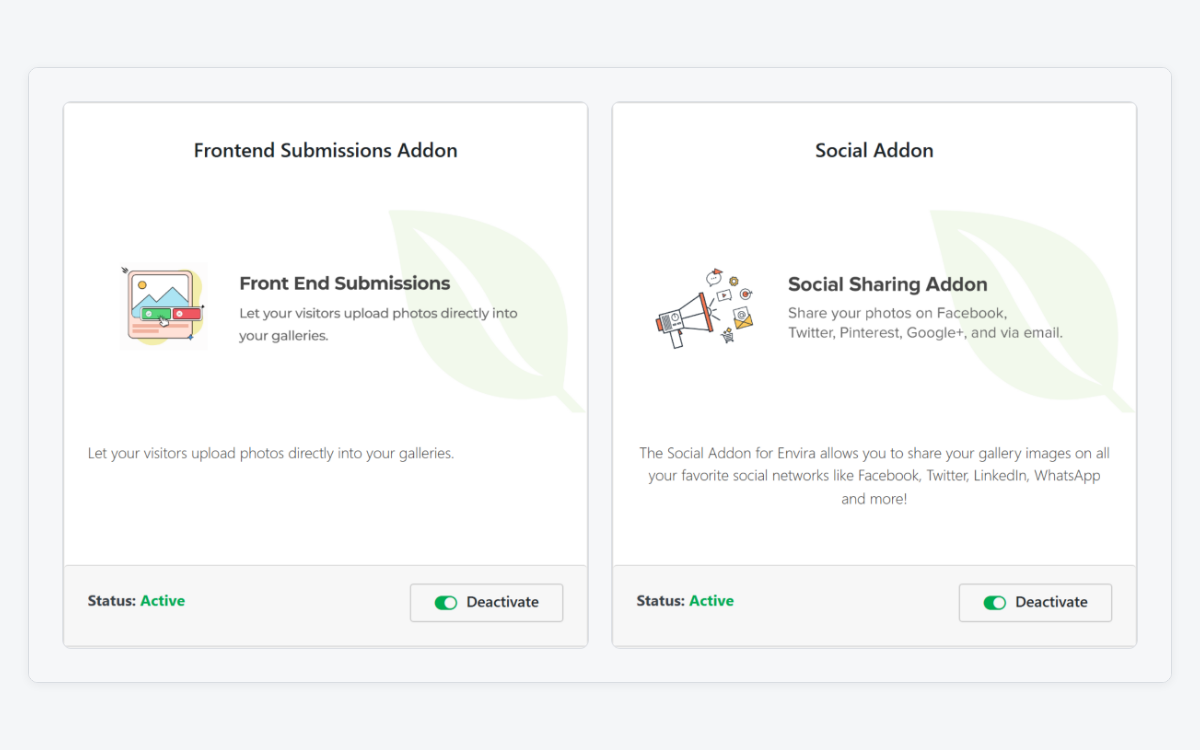
Then open your Envira Gallery add-ons page and activate Frontend Submissions. Both of this release’s features live on that page, so activate the Social addon while you are there and the Instagram button will be ready too.
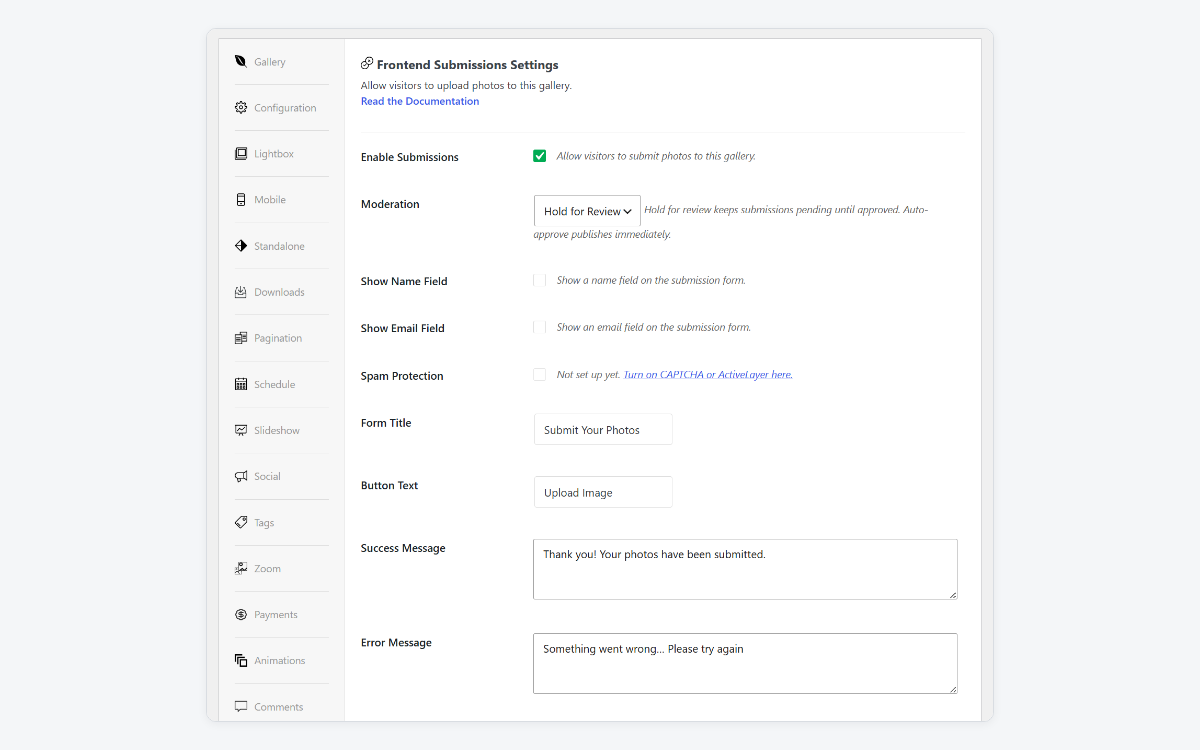
Now open the gallery you want the photos to land in. There’s a new Submissions tab in the gallery editor, and switching on Enable Submissions reveals the rest.
From there the wording is all yours: the form’s title, the button text, and the thank-you and error messages your visitors see. You can ask for a name and an email too, if you want to know who sent what.
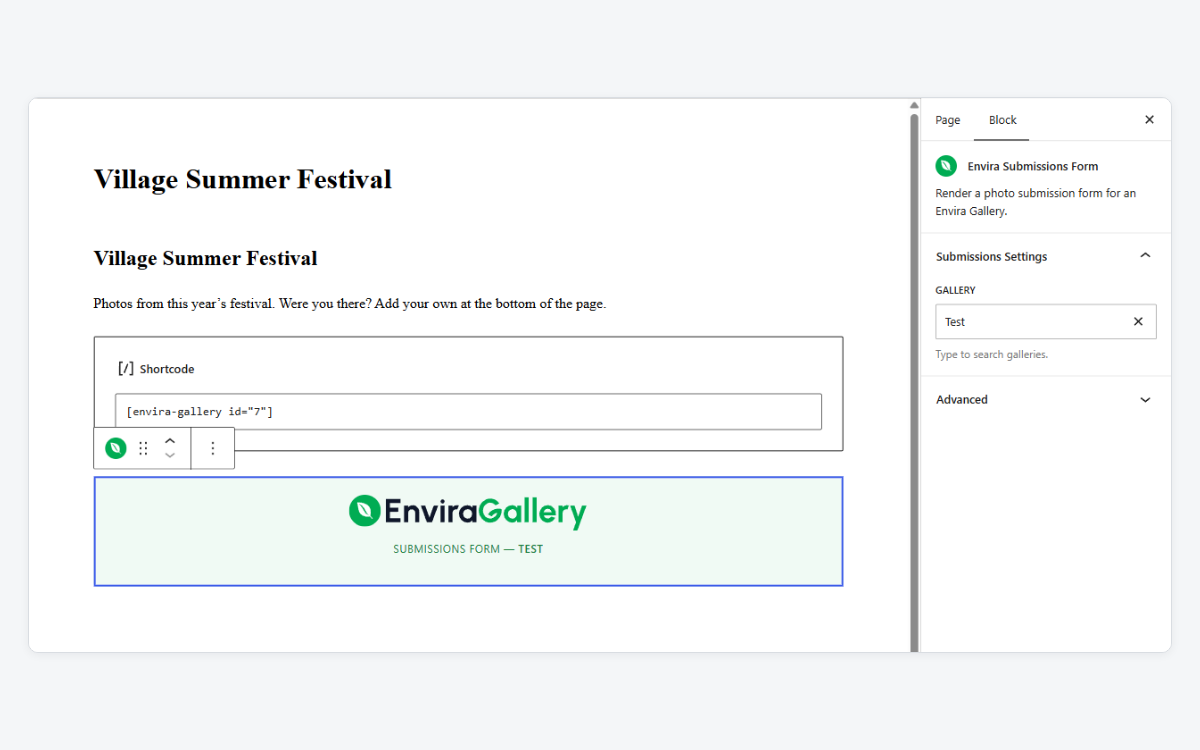
Then put the form wherever you want it. Add the Envira Submissions Form block to any page and type your gallery’s name into the block settings to connect the two. That’s the whole setup.
Not using the block editor? There’s a shortcode waiting in the gallery’s Envira Code box that does the same job inside a widget, a template or a page builder.
Nothing Goes Live Without Your Approval
Photos arrive held for review, not published. You look through what came in, approve the ones you want, and drop the rest, so an open upload form never turns into a gallery you’re embarrassed by.
Would you rather not stand at the gate? Switch Moderation to Auto-Approve and photos go live the moment they land.
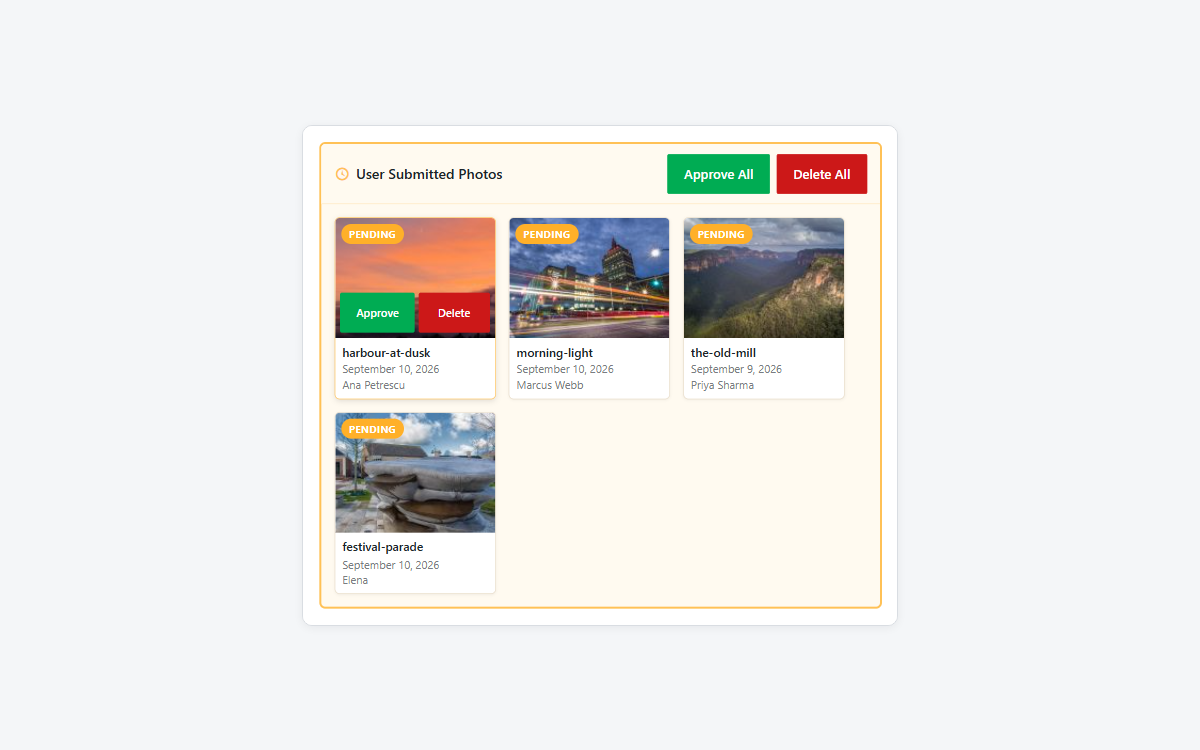
The form sits out in the open, so it arrives already screened. Envira quietly adds a trap field that bots fill in and people never see, checks that every upload really is an image and not something renamed, and caps any one visitor at 10 uploads an hour.
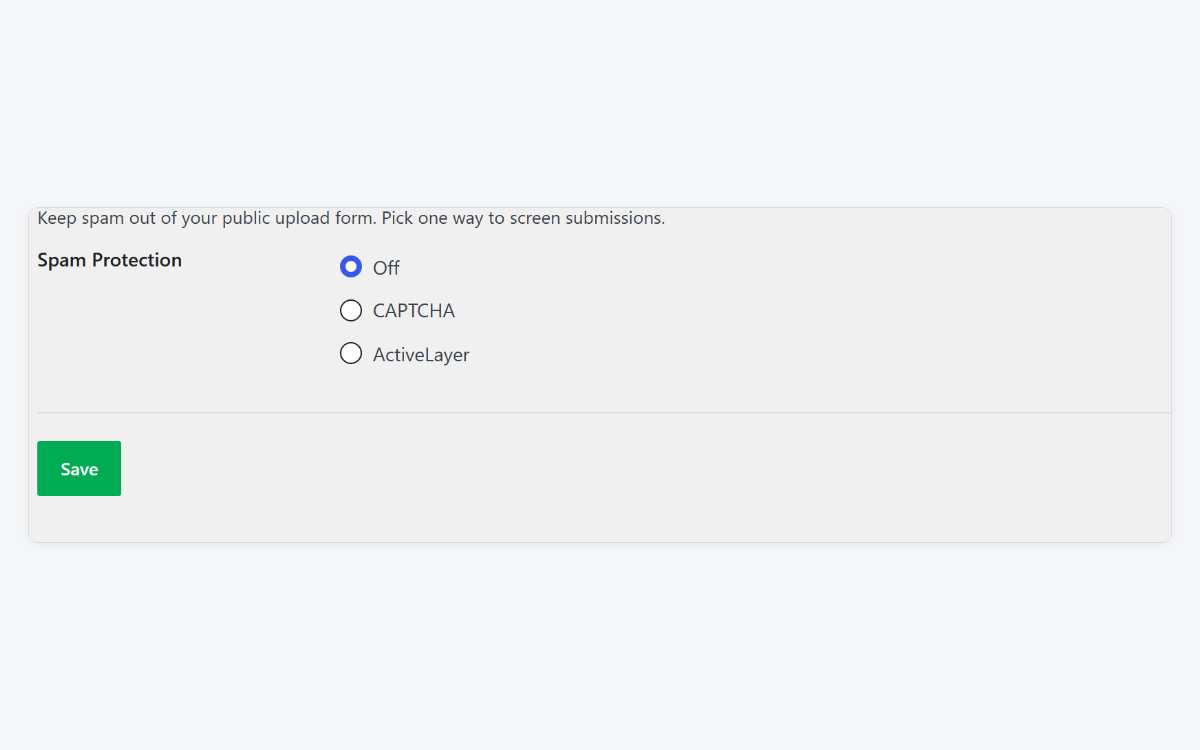
Want a second layer? Go to Envira Gallery > Settings > Frontend Submissions and switch on either a CAPTCHA you already run or the ActiveLayer service.
Instagram Sharing: One More Way Your Photos Get Passed Around
Your visitors can now send your photos straight to Instagram. The Social addon’s share buttons have picked up an Instagram option, sitting alongside Facebook, X, Pinterest, LinkedIn and email, on your gallery images and inside the lightbox.
It opens the phone’s own share menu, so someone browsing your work on their mobile can post your photo to their story in a couple of taps.

You do need to switch it on. Open your gallery’s Social tab, turn on sharing if you never have, and tick Instagram in the list of buttons. There are two lists, one for your gallery and one for the lightbox, so tick it in both if you want it in both places.
Get Started Today
Frontend Submissions is brand new and comes with Pro plans and above. Instagram sharing arrives with the Social addon, on those same plans, and it’s a free update if you already have it. Both are waiting on your add-ons page.
Want every setting explained, step by step? Read the Frontend Submissions documentation.
Start Collecting Photos From Your Visitors
Let your audience add their own photos to your galleries, approve every one before it goes live, and give your work one more way to get shared.
This release also brings a batch of smaller fixes across Envira, from Mason layouts on WPBakery pages to the gallery block holding on to its settings in the editor. As always, it’s worth keeping everything updated to the latest version.
One change worth knowing about if you use the Comments addon: comments are no longer switched on by default. If a gallery of yours was showing comments without you ever turning them on, tick Enable Comments in that gallery’s settings to bring them back.
Want to get more out of your galleries? Here are a few guides to pick up next:
- Related Galleries & 3 New Layouts
- The Comments Addon
- Sell Images With Envira Payments
- Photo Contests With Cash Prizes
- The Search Addon
Want to see what else is new in Envira Gallery? Check out our full blog for the latest tutorials, feature releases, and photography tips.