




Create Beautiful Responsive Photo & Video Galleries For Your Site in Minutes
Documentation, Reference Materials and Tutorials for Envira Gallery
Envira Gallery works with the Divi Builder. You build the gallery once in Envira, then drop it onto any Divi layout with a shortcode. Your layout, columns, lightbox, and every other gallery setting travel with the gallery, so you set them in one place and the Divi page picks them up.
There is no separate Divi addon to buy or install. The method below works in every Envira Gallery version, including Envira Gallery Lite.
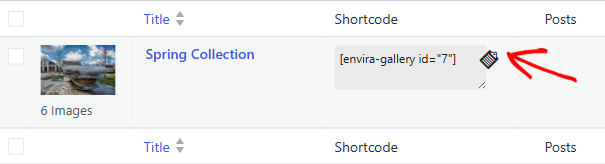
Go to Envira Gallery › Galleries in your WordPress admin. Each gallery in the list has a Shortcode column. Click the clipboard icon next to your gallery to copy its shortcode.
The shortcode looks like this, where 123 is your gallery ID:
[envira-gallery id="123"]
Open the page or post where you want the gallery, then click Enable Visual Builder.
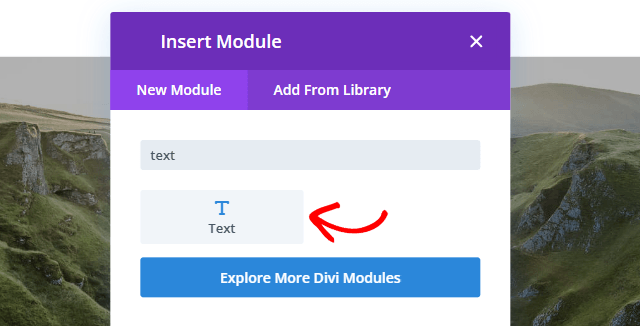
Click the grey plus icon to add a new module, search for Text, and select it. A Code module works exactly the same way if you prefer to keep the shortcode out of the visual editor.
Paste the shortcode into the module’s content area, on its own line with no other text around it. Then click the green checkmark to save the module.
Click Save in the Divi Builder toolbar, then view the page. Your gallery appears where you placed the module.
Envira ships a classic Envira Gallery widget, and Divi can display it, but only as part of a whole widget area rather than on its own. Use this route only if you already have a sidebar built around the gallery. The shortcode is simpler for everything else.
Divi renders the whole area, so anything else sitting in that sidebar shows up alongside the gallery.
The gallery shortcode accepts a small set of attributes:
| Attribute | Example | What it does |
|---|---|---|
| id | id=”123″ | The gallery to display. This is the only attribute you need. |
| slug | slug=”summer-2026″ | Displays a gallery by its slug instead of its ID. |
| limit | limit=”6″ | Shows only the first few images. This also turns caching off for that gallery. |
| cache | cache=”false” | Renders the gallery fresh on every page load, useful while you are testing a layout. |
Layout, columns, and lightbox are not shortcode options. Adding columns="4" or layout="masonry" to the shortcode does nothing, because the gallery reads those from its own settings. Change them in Envira Gallery › Galleries on the gallery’s Config tab, and every page using that gallery updates at once.
Divi’s older Backend Builder runs inside the WordPress admin, where Envira does not render galleries. Switch to the Visual Builder, or save the page and preview it.
The shortcode landed in a module that does not process shortcodes, or a character changed when it was pasted. Delete it, paste it again into a Text or Code module, and check that the square brackets and straight quotes survived.
Envira caches gallery output. Re-save the gallery, then clear any caching plugin or host cache. To rule caching out while you work, add cache="false" to the shortcode and remove it when you are done.
No. We do not have a Divi module, and the shortcode above is the supported way to place a gallery in a Divi layout. If a Divi module is something you would use, tell our support team so we can log the request.
No. The shortcode and the widget both ship in Envira Gallery Lite.
Not from the shortcode. Duplicate the gallery, give the copy its own column setting, then use each gallery’s own shortcode.
Related articles: How to create your first gallery · How to use the Envira Gallery widget

Envira Gallery: Create, Showcase, and Sell Your Work – Trusted by 150k+ Sites.
Enter the URL of your WordPress website to install

Unlock even more powerful features designed to make your galleries even more beaituful.
Video Galleries
eCommerce
Social media Sharing
Adobe Lightroom
And much more!

What are you waiting for?


Copyright © [#this year :%Y] Envira Gallery, LLC. Envira Gallery is a trademark of Envira Gallery, LLC.