




Create Beautiful Responsive Photo & Video Galleries For Your Site in Minutes
Documentation, Reference Materials and Tutorials for Envira Gallery
Do you want to write alt text, titles, captions, and tags for your gallery images without typing a single word? The AI Image Assistant lets Envira do it for you – one image at a time, in bulk across a whole gallery, or automatically as you upload. It can even write a full description for the entire gallery.
In this guide, we’ll walk you through everything the AI Image Assistant can do and how to set it up in minutes.
Before we get started, you’ll need the following:
- An Envira Gallery license that is active on your site.
- Envira AI credits available on your account. The Assistant uses 1 credit per image. You can check your balance and top up any time (more on that below).
- The Envira Tags addon activated, if you want the Assistant to generate tags. Tag options stay hidden until the addon is active.
The AI Image Assistant reads your images and writes the metadata that makes galleries accessible, searchable, and SEO-friendly. For each image, it can generate:
IMG_4821.jpg becomes “Sunset Over the Harbor”).On top of per-image metadata, it can also write a full gallery description – a short, comprehensive summary of the whole gallery.
You can run the Assistant three ways:
First, let’s set your defaults so the Assistant knows what to write and how.
Go to Envira Gallery » Settings, then click the Image Assistant Settings tab.

At the top you’ll see your Credit Usage widget, which shows how many credits you’ve used this year and when your balance resets.
Turn on Automatically generate on upload if you’d like Envira to create metadata for each new image as it’s added to a gallery. (This uses 1 credit per image.) When it’s on, you can choose exactly which fields to generate:
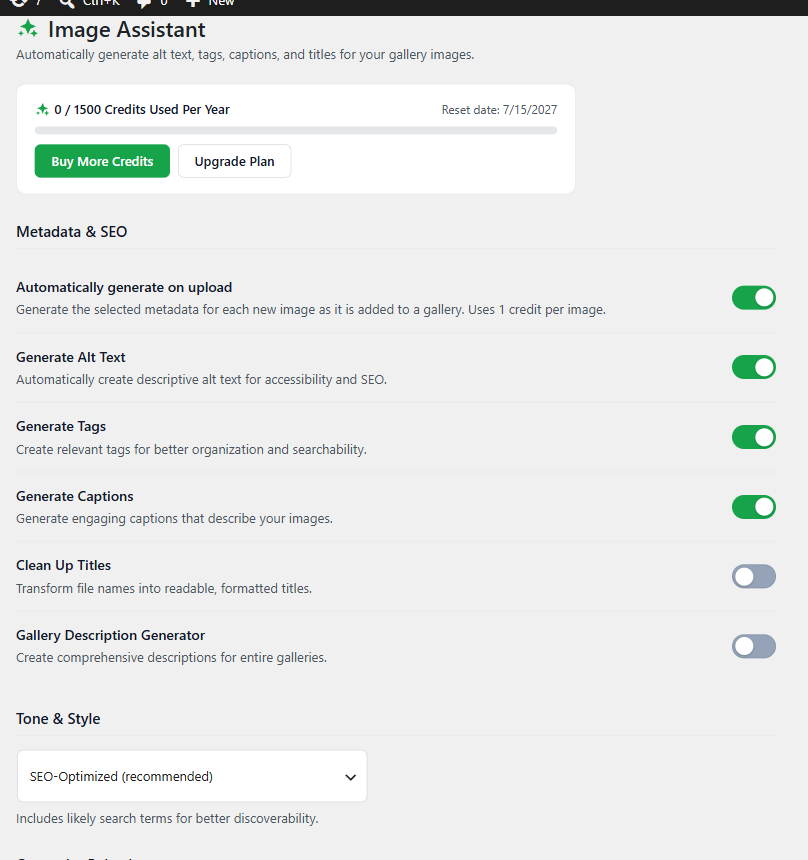
Pick the voice the AI should write in. Options include:
Choose the tone that best matches your site – for example, E-commerce for a product catalog, or Photography for a portfolio.
Turn on Skip images that already have metadata to protect any alt text, tags, captions, or titles you’ve written by hand. When this is on, the Assistant only fills in what’s empty and never overwrites your own words.
When you’re happy with your choices, click Save Settings.
Open the gallery you want to work on (Envira Gallery » Add New, or edit an existing gallery), then look at the images in the Images tab.
Hover over any image and click the sparkle icon to open the Image Assistant for that image.
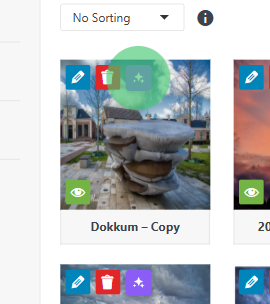
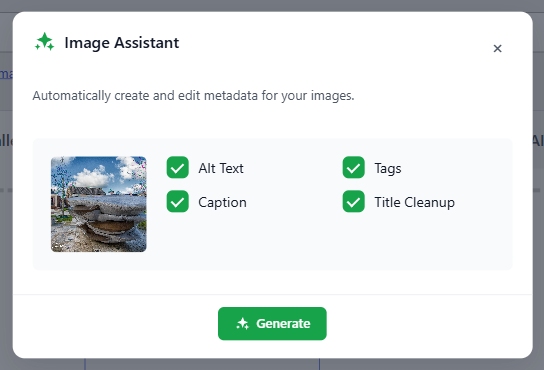
In the modal that opens:
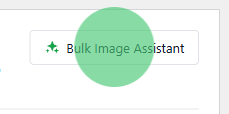
To process many images at once, use the bulk tool at the top of the Images tab.
The modal shows how many images you’ve selected and how many credits the batch will use – 1 credit per image. It also reminds you whether existing metadata will be skipped or overwritten, based on your Overwrite Behavior setting.
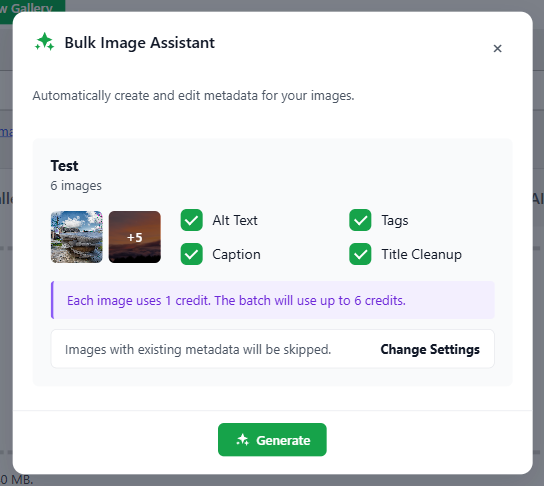
Click Generate, and the Assistant works through your images one by one, showing live progress (X / Y completed · Z skipped).
Tip: You can close the modal and keep working – the batch continues running in the background. The sparkle icon on each image spins while it’s being processed and settles once its metadata is applied. When the job finishes, you’ll see a summary of how many images were completed, skipped, and failed.
If you need to stop early, click Cancel Processing. Any images already completed keep their new metadata.
The Assistant can also write a description for the entire gallery.
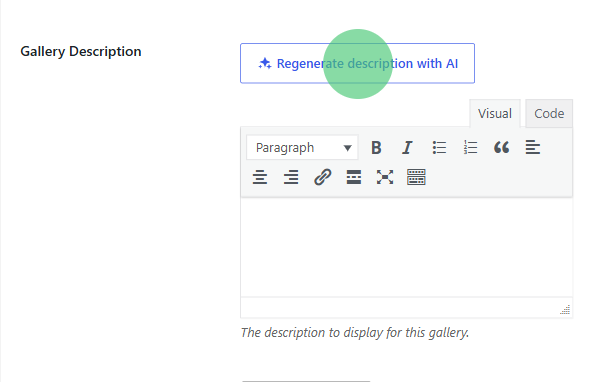
The Assistant samples your gallery’s images (up to 25) and writes a short description based on their titles, alt text, and captions. You can edit the result before saving.
If you enabled the Gallery Description Generator in Step 1, Envira will also write a description automatically the first time you save a gallery that doesn’t have one yet – it never overwrites a description you’ve already written.
The AI Image Assistant runs on Envira AI credits. Each image processed – whether single, bulk, or on upload – uses 1 credit. Regenerating a single field also uses 1 credit.
You can see your balance in the Credit Usage widget, which appears on both the Image Assistant Settings tab and the General settings tab. It shows credits used, your reset date, and two quick links:
Which plans include the AI Image Assistant?
The AI Image Assistant is available on Envira Gallery Basic and higher. You’ll also need available Envira AI credits.
How many credits does it use?
1 credit per image, for single-image generation, bulk processing, and automatic-on-upload generation. Regenerating an individual field uses 1 credit, and generating a gallery description uses credits too.
Will it overwrite the alt text and captions I’ve already written?
Only if you let it. Turn on Skip images that already have metadata in your Image Assistant Settings and the Assistant will leave your existing metadata untouched, filling in only the empty fields.
Why don’t I see the option to generate tags?
AI tags require the Envira Tags addon. If it isn’t active, the tag options are hidden. Activate the addon under Envira Gallery » Addons and the tag option will reappear – your saved preference is preserved while the addon is off.
Can I keep using WordPress while a bulk job runs?
Yes. Bulk jobs run in the background, so you can close the modal and keep working. You’ll see progress on the image thumbnails and a summary when the job completes.
Does it work on images added after I set things up?
Yes. Turn on Automatically generate on upload and every new image added to a gallery gets metadata generated for the fields you selected.
That’s it! You now know how to use the AI Image Assistant to generate alt text, titles, captions, and tags for your images, plus full gallery descriptions – all without leaving the Envira gallery editor.

Envira Gallery: Create, Showcase, and Sell Your Work – Trusted by 150k+ Sites.
Enter the URL of your WordPress website to install

Unlock even more powerful features designed to make your galleries even more beaituful.
Video Galleries
eCommerce
Social media Sharing
Adobe Lightroom
And much more!

What are you waiting for?

Copyright © [#this year :%Y] Envira Gallery, LLC. Envira Gallery is a trademark of Envira Gallery, LLC.