




Black Friday is two weeks away, and for a lot of sites it kicks off the busiest few weeks of the year.
Galleries are often the heaviest thing on the page. When a holiday post gets shared or a gift guide takes off, a slow gallery is the first thing visitors notice, and many of them won’t wait for it.
Most of the fixes are settings you already have, and they take minutes. One of them needs a head start, which is why this week is the right time to begin.
This checklist gets your gallery site ready for holiday traffic, whether you run a blog, a small business, or a photography portfolio. And if your traffic doesn’t spike, every fix here still makes your galleries faster all year.
In This Article
- Step 1: Test Your Site Speed Before Holiday Traffic Arrives
- Step 2: Check Lazy Loading on Your Older Galleries
- Step 3: Right-Size Your Gallery Thumbnails
- Step 4: Set Up Envira CDN This Week
- Step 5: Check Your Galleries on a Phone
- Optional: Sell Images From Your Galleries
- Your Final Check Before Black Friday
- FAQs About Holiday Traffic
Step 1: Test Your Site Speed Before Holiday Traffic Arrives
Knowing where you’re starting from tells you which fixes made a difference later. It also shows you the slowest page before your visitors find it.
I’d suggest testing the pages that will get the most holiday visitors, not just your homepage. That might be a holiday recipe round-up, a gift guide, a product page, or your portfolio. Paste each one into a free tool like Google PageSpeed Insights and write down the scores for mobile and desktop.
Then open the same pages on your own phone using cellular data instead of Wi-Fi. Scroll through each gallery and tap a few images to open the lightbox. If anything feels sluggish to you, it will feel worse to someone seeing your site for the first time.
It’s also worth sending your host a quick message to ask whether your plan has limits on traffic or bandwidth, and what happens if you go over them. Knowing those limits now beats finding out on Black Friday morning.
Keep your notes handy, because you’ll test these same pages again at the end of this checklist.
Step 2: Check Lazy Loading on Your Older Galleries
Lazy loading means your gallery thumbnails load only as they scroll into view. Without it, the browser tries to download every photo in the gallery the moment the page opens.
Lazy loading is built into Envira Gallery, the WordPress gallery plugin, on every plan, including the free version. It’s switched on by default for every new gallery you create.
Older galleries are a different story, because existing galleries keep whatever setting they were saved with. If you built a gallery years ago, or someone on your team unticked the box, it may still be loading every image up front.
To check, go to Envira Gallery in your WordPress dashboard and open one of your busiest galleries. Click the Configuration tab (it’s called Config in the free version) and scroll down to Enable Lazy Loading?

If the box is unticked, tick it and click Update. You can leave the Lazy Loading Delay field below it at its default of 500 milliseconds.
Repeat this for the galleries on the pages you tested in Step 1. There’s no need to open every gallery you’ve ever made, just the ones your visitors are most likely to see this season.
Step 3: Right-Size Your Gallery Thumbnails
A thumbnail is the small version of each photo in your gallery grid. If it’s much bigger than the space it fills, every visitor downloads weight they never see. This happens a lot with photos straight from a camera or phone.
You’ll find the fix on the same Configuration tab from Step 2. Out of the box, Image Dimensions are set to 640 x 480 pixels.

Match those numbers to your layout: a gallery with two wide columns may need bigger thumbnails, while one with five or six columns can usually go smaller.
Don’t worry about the lightbox. It has its own size setting, so visitors still get the large, crisp photo when they click a thumbnail.
If you’re on Envira Gallery Pro or above, default gallery settings let you save your preferred thumbnail size once and have every new gallery start with it.
Step 4: Set Up Envira CDN This Week
Every image on your site is normally sent from your own hosting server. That’s fine on a quiet day, but on the busiest days of the year your server has to push every photo to every visitor at once. That’s when budget hosting starts to struggle.
A CDN (content delivery network) fixes this by keeping copies of your images on servers around the world. Each visitor gets the images from the location closest to them, and your host gets a break.
Envira CDN copies the images in your Media Library to a network of 335+ locations. It’s a separate product from Envira Gallery and works on any WordPress site, whether or not you use Envira for your galleries.
It costs $10 a month or $100 a year, with unlimited images and no overage fees. It handles PNG, JPG, and GIF files of 10MB or less.
Why Envira CDN Needs a Head Start
Copying your images over takes a while. According to the Envira CDN documentation, it takes about 51 minutes on average to offload 1,000 images.
If your Media Library holds several thousand photos, that’s a few hours of work happening in the background. Starting this week gives the offload plenty of room to finish, with time left over to check everything looks right.
How to Turn On Envira CDN
Install and activate the Envira CDN plugin, then enter your license key. Next, go to Envira CDN » Settings and switch on Enable CDN.

Click Bulk Offload Images to copy the images you already have. Anything you upload from now on is offloaded automatically, so new photos are covered without an extra step.
On the same screen you’ll see Enable Transformations. This is a separate switch, and it’s the one that resizes images for each device and converts them to a lighter format like WebP when the browser supports it. I’d turn it on as well.
Once the offload is done, your Media Library shows which images are on the CDN. There’s a Show Non-CDN Images filter, so you can spot anything that was skipped.
Images your theme loads from outside the Media Library, like some logos or background images, aren’t served through the CDN. Your gallery photos live in the Media Library, so they’re the ones that benefit.
Take the Weight Off Your Host Before Black Friday
Envira CDN serves your images from 335+ locations around the world, for $10 a month. It works on any WordPress site.
Step 5: Check Your Galleries on a Phone
A lot of holiday browsing happens on phones, often in short bursts between other things. Someone scrolling a gift guide in a checkout line won’t give a slow gallery a second chance.
A quick mobile check is worth doing before the rush, even if your site looked fine on your phone last month.
Give Phone Visitors Smaller Gallery Images
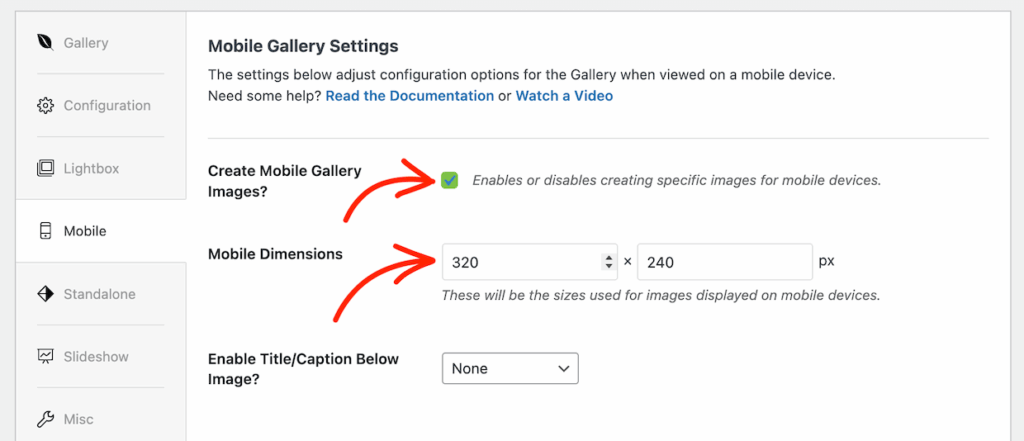
On paid Envira Gallery plans, the gallery’s Mobile tab lets Envira create separate, smaller image versions for phones, so mobile visitors don’t download desktop-sized thumbnails.
Open the gallery, click the Mobile tab, and make sure Create Mobile Gallery Images? is checked. The Mobile Dimensions field below it starts at 320 x 240 pixels.
Then see it the way your visitors will. The block editor’s mobile preview gives you a fast first look, and the mobile view in Chrome’s developer tools lets you try different phone sizes. Nothing beats opening the live page on a real phone, so finish there.
Our guide on optimizing image galleries for mobile walks through every Mobile tab setting if you’d like to go further.
Split Big Galleries With Pagination
Some galleries just get big: a holiday market with 200 photos, a product catalog, or a year of event shots. Even with lazy loading, one giant gallery can feel heavy on a phone.
Pagination splits a gallery into pages, so the first view loads only a set number of images. It’s available on Envira Gallery Plus and above.
Open the gallery’s Pagination tab, tick Enable Pagination?, and use Images per Page? to set how many images the first view shows. Load Paginated Items decides how the rest load.
For phones, I’d pick On Button Click (AJAX). It adds a Load More button that’s easy to tap, and new images appear without the page reloading.

Using the free version? Mobile tab settings come with paid plans, and Pagination starts on Plus. You can compare Envira Gallery plans to see which one fits your galleries.
Optional: Sell Images From Your Galleries
Not every gallery site sells anything, and that’s fine. If yours doesn’t, skip ahead to the final check.
If you do sell images, or you’ve been thinking about it, this season’s extra visitors are already looking at your photos. Envira Payments adds a Stripe checkout to a gallery, so visitors can buy an image without leaving the page.
It sells digital downloads, and you choose which download sizes to offer. Buyers pay by card, Apple Pay, or Link on a page hosted by Stripe, and they never need to create an account.
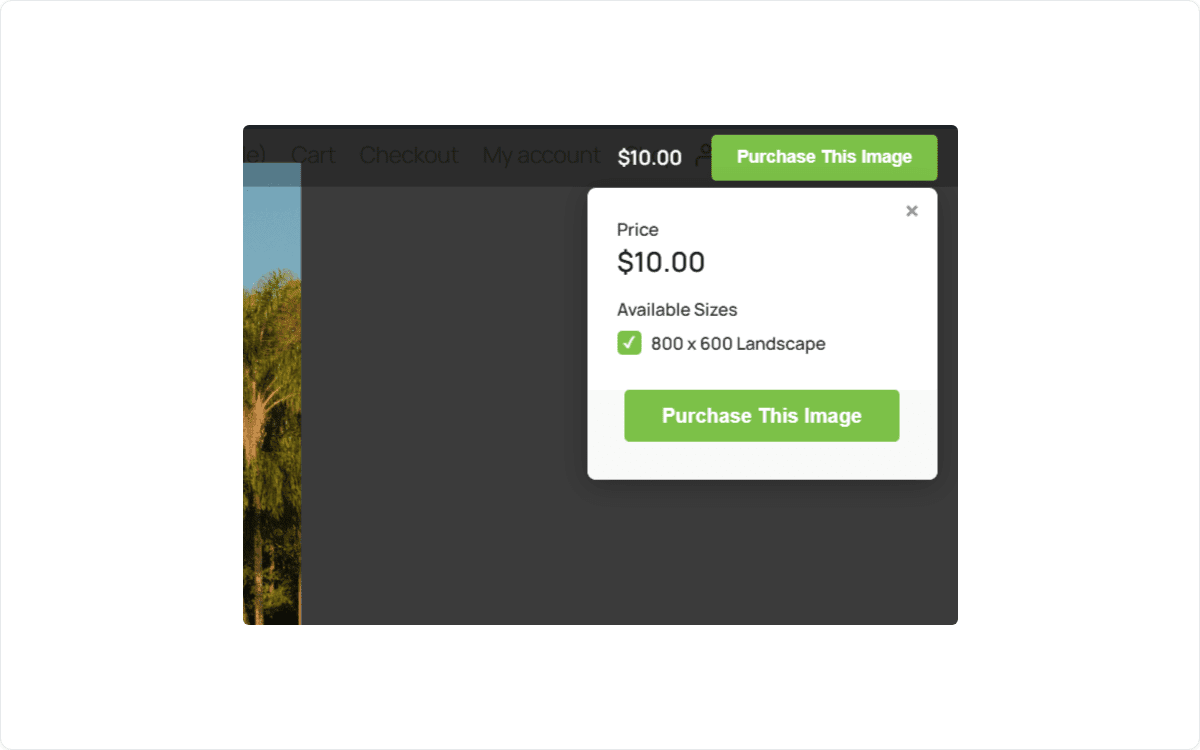
To set it up, activate the Payments addon and connect Stripe under Envira Gallery » Settings » Payments. Then turn it on in the gallery’s Payments tab, choose where the buy button appears, select your images, and click Sell with Envira Payments to set prices.
Envira Payments comes with every paid plan. On Basic and Plus, Envira adds a 5% fee on top of Stripe’s own fee, and on Pro and above you keep that 5%.
Your Final Check Before Black Friday
Give yourself a few days of breathing room before Black Friday on November 27. Changes made the night before have no time to be tested, and that’s when small problems slip through.
Here’s how the next two weeks can look:
Start Today
If you’re adding the CDN, start the offload now. It runs in the background and can take hours.
This Week
Check lazy loading and thumbnail sizes on your busiest galleries. Minutes each.
Next Week
Open every busy page on a real phone and fix anything slow.
Nov 23 to 25
Run the final check below, with a few days to spare before Black Friday.
First, update Envira Gallery and its addons to the latest versions, so you’re testing the same code your visitors will get. Then go back to the pages you tested in Step 1 and run them through PageSpeed Insights again. Compare the new scores with your notes, then open each page on your phone one more time.
While each page is open, check these five things:
- Lazy loading is ticked on every gallery on your busiest pages.
- Thumbnail sizes match your columns, and the lightbox still opens a crisp full-size image.
- The Envira CDN offload has finished, and the Show Non-CDN Images filter comes back empty or close to it.
- Galleries look right on a real phone, including pagination and any Load More button.
- If you sell, a test purchase goes through (or a real one you refund from Envira Gallery » Payments) and the confirmation email arrives. If it doesn’t, an SMTP plugin like WP Mail SMTP usually fixes it.
Planning a gift guide, holiday menu, or seasonal collection? With scheduled galleries on Plus and above, you can build it now and set the dates it goes live and comes down.
Envira also caches your gallery output by default to help it load faster. If you edit a gallery and don’t see the change right away, clear any caching plugin you use and check again.
Once every item is ticked, you can stop worrying about the site and enjoy watching the visitors come in.
FAQs About Holiday Traffic
When should I start preparing my website for holiday traffic?
I’d start at least two weeks before Black Friday. Quick settings like lazy loading take minutes, but copying your images to a CDN can take hours if you have a big Media Library. Starting early also leaves time to test everything again before the rush.
Will lazy loading make my photos look worse?
No. Lazy loading only changes when your thumbnails load, not how they look. Each image loads as it scrolls into view, at the same size and quality as before.
Is Envira CDN included with my Envira Gallery license?
No, Envira CDN is a separate product. It costs $10 a month or $100 a year, and it works on any WordPress site, even one that doesn’t use Envira Gallery.
Do I need a CDN if I run a small blog?
Not always, but small blogs are often on budget hosting, and that’s where a sudden spike hurts most. If a holiday post gets shared widely, a CDN takes the image traffic off your host so the rest of your site keeps working.
How can I tell if my hosting can handle a holiday traffic spike?
The quickest way is to ask your host directly. Find out whether your plan limits traffic or bandwidth and what happens if you go over. Lighter pages and a CDN also reduce how much work your host has to do on busy days.
Can I sell photos from my gallery without WooCommerce?
Yes. Envira Payments adds a Stripe checkout to your gallery on every paid plan, and it sells images as digital downloads. Basic and Plus include a 5% Envira fee, and Pro and above have no extra fee.
A little prep this week means your galleries are ready to look their best when holiday visitors show up. Be sure to check out our post on how to optimize images for the web.
Not using Envira Gallery yet? Get started today!
Don’t forget to follow us on Facebook and X (Twitter) for the best photography tips, resources, and WordPress tutorials.