



Most digital artists post their work on Instagram first, and that makes sense: it’s where people find you.
ArtStation and Behance help too, especially if you’re hoping to work with a game or film studio. But on all of them, your art sits inside someone else’s design, in the same small tiles as everyone else’s, with other artists one click away.
A portfolio site gives your art the room those platforms can’t. The hard part is deciding how to organize it, so I went through the sites of 12 digital artists and studios, from concept artists and 3D artists to pixel artists, and noted what each one does that you can borrow.
After the examples, I’ll show you how to build the same kind of portfolio on WordPress, without touching code.
12 Digital Art Portfolio Examples for Inspiration
Every site below was checked on November 17, 2026. Websites change over time, so if one has moved or looks different from what’s described here, let us know and we’ll update the list.
1. Lois van Baarle (Loish)
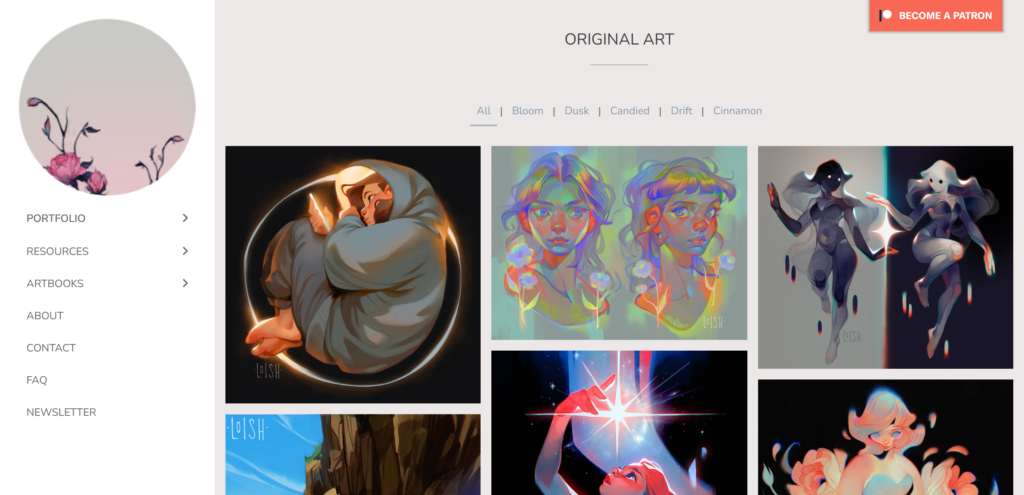
Lois van Baarle, better known as Loish, calls herself a digital artist on her About page and does character design work for clients. Her portfolio menu splits the work four ways: Original Art, Rough Work, Client Work, and Animation.
Inside Original Art, the pieces sit in a masonry grid, and a row of filter links at the top narrows the view to one set. Free brushes, tutorials, and her artbooks each get their own menu item too.
Separating finished pieces from sketches and client work lets an art director go straight to what they need, while fans can still dig into the rough work.
2. Raphael Lacoste
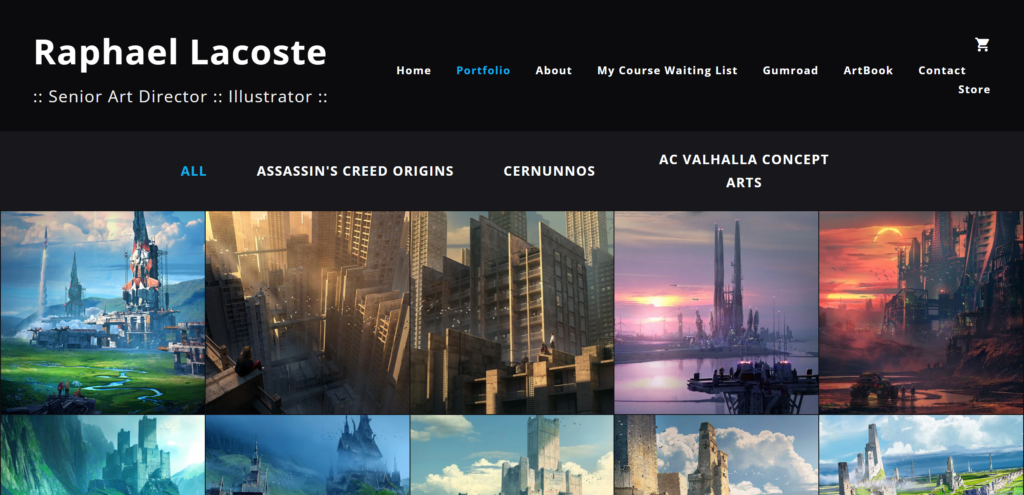
Raphael Lacoste is a concept artist and art director, and his site is almost all environments: castles, ruined cities, and sci-fi skylines. His Portfolio page fills the screen edge to edge with thumbnails, and tabs across the top filter it by project, such as Assassin’s Creed Origins and AC Valhalla concept art.
The menu also links to his store, his Gumroad page, an artbook, and a waiting list for his course.
If your work comes from large projects, grouping it by project tells a studio what you worked on before they read a single word.
3. Goro Fujita
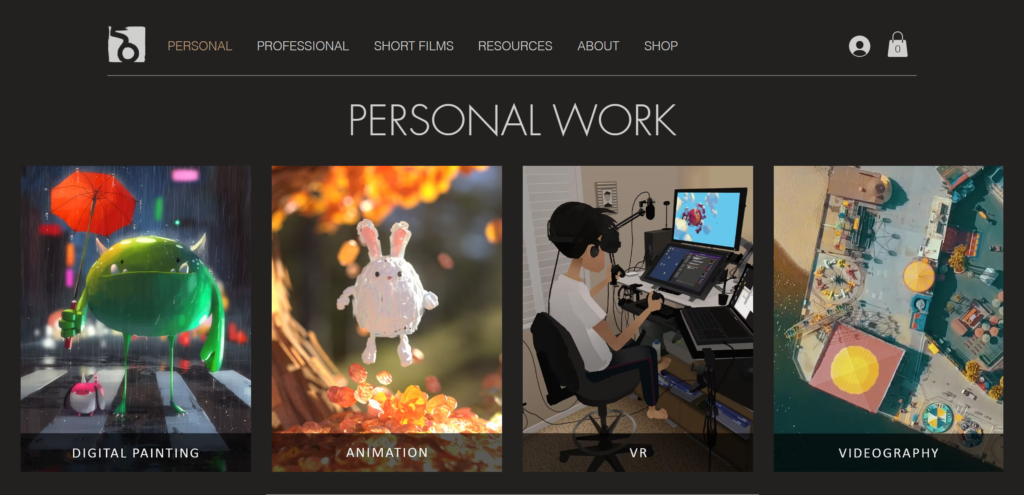
Goro Fujita paints and animates in virtual reality, and his About page explains how he got there through Quill, a VR painting and animation tool. His menu keeps personal and professional work apart, with separate pages for short films, resources, and a shop.
The Personal Work page opens on large tiles labelled by medium, such as Digital Painting, Animation, and VR. The homepage also promotes a monthly live painting session, which gives visitors a reason to come back.
When you work in more than one medium, letting visitors pick a medium first keeps a still painting from getting lost between animation clips.
4. Sachin Teng
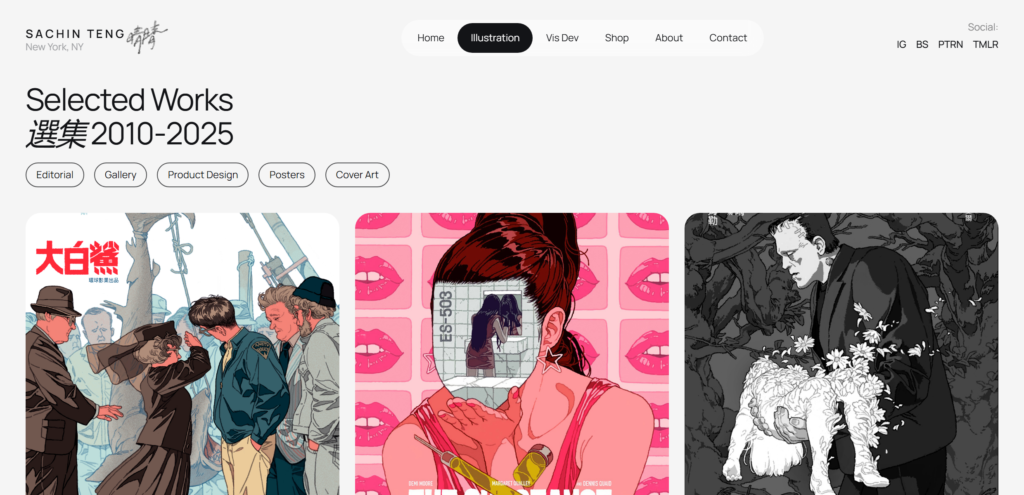
Sachin Teng gives Illustration and Vis Dev their own menu items. The Illustration page, titled Selected Works 2010-2025, has filter buttons for Editorial, Gallery, Product Design, Posters, and Cover Art, and each piece is labelled with the client, publisher, or type of project.
A short label under each piece does the job of a client list.
5. Simon Stålenhag
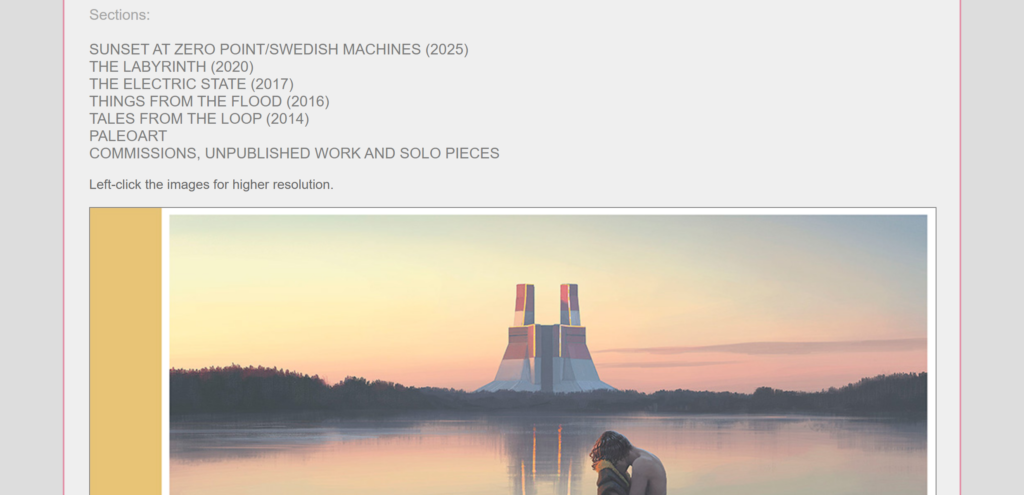
Simon Stålenhag’s homepage opens on his newest book. At the top are links to buy prints and books, then a list of sections that link to a page for each book or project, each with its year, from Tales From the Loop (2014) to Sunset at Zero Point/Swedish Machines (2025).
A single line tells visitors to click the images for higher resolution, and every image links to a much larger file.
There is very little design around the art. A larger version of every image matters most for detailed paintings, where a small preview hides half of what’s going on.
6. Anna Dittmann
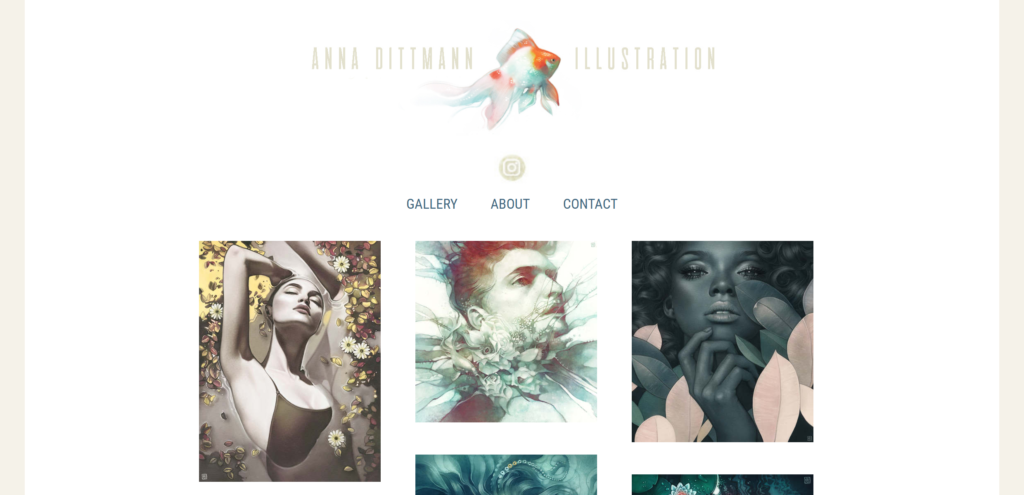
Anna Dittmann’s portrait illustrations sit in a three-column gallery under her name, with only three menu items: Gallery, About, and Contact. The gallery is split across pages, so the first screen loads a manageable set rather than every piece at once.
Each image opens on its own page, with nothing else competing for attention.
A short menu and a single gallery suit an artist with one consistent style, because there’s nothing to sort and nowhere to get lost.
7. Beeple (Mike Winkelmann)
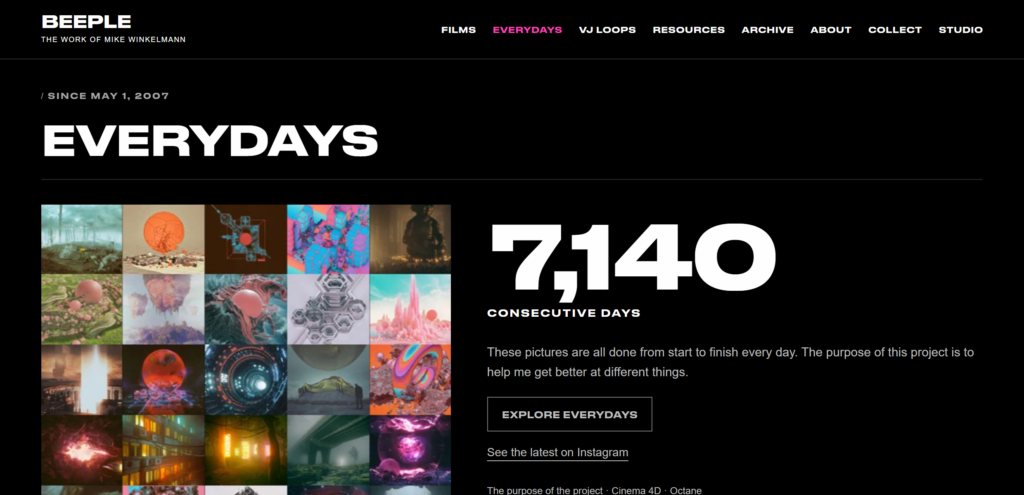
Mike Winkelmann, who works as Beeple, organizes his site by format: Films, Everydays, VJ Loops, Resources, and an Archive. The Everydays page pairs a grid of thumbnails with a large counter, which read 7,140 consecutive days when I visited, plus links about the 3D tools he uses, Cinema 4D and Octane.
A visible streak turns the portfolio into a story about practice, and it gives return visitors something new to check.
8. Chris Labrooy
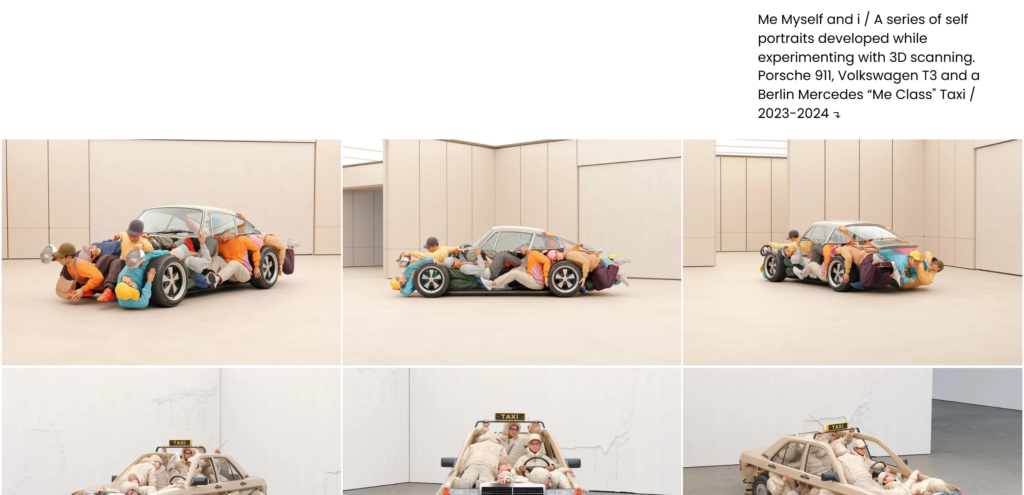
Chris Labrooy is a 3D artist, and his Info page explains that he first used CGI to visualize furniture and products before treating it as a medium in its own right. His homepage is a list of projects, each with a short written intro and a row of images you can open full size.
The menu has just three items, Work, Info, and Shop, and the shop runs on its own domain.
A sentence or two of context per project helps 3D work in particular, since a viewer may not know whether they’re looking at a photo, a render, or a scan.
9. Ash Thorp (Alt Creative)
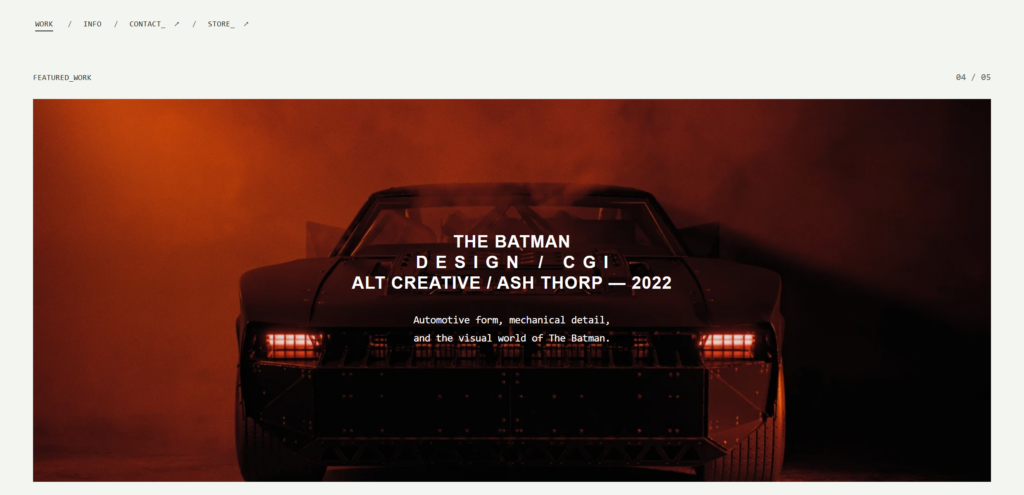
Ash Thorp’s own domain redirects to his studio site, Alt Creative, which opens on a featured-work slideshow. Below it sits a project archive where every entry lists the practice, such as concept, direction, or imagery, and usually the year.
The archive has Shuffle and Reset buttons, and the Store link goes to his Gumroad page.
For artists who work in CGI and motion, leading with moving pieces shows range right away, and naming your role on each project makes it clear what you actually did.
10. Octavi Navarro
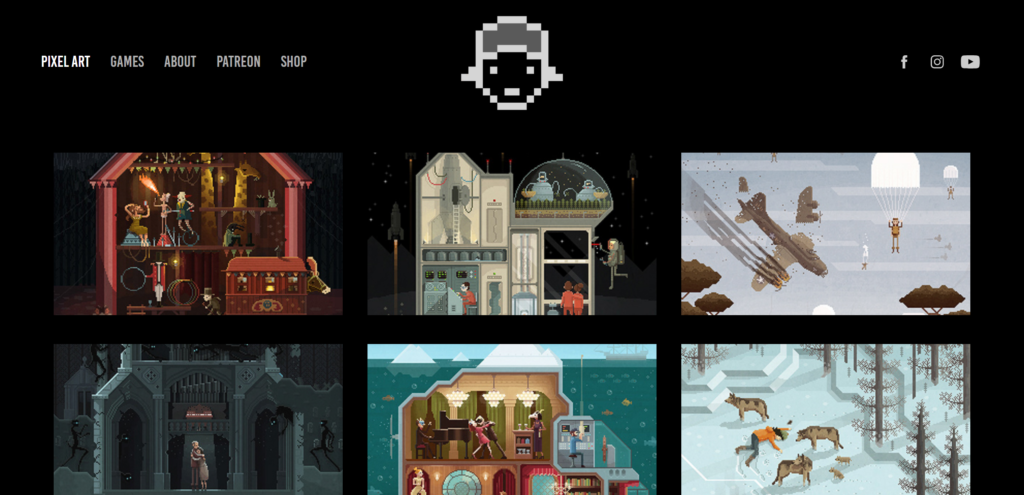
Octavi Navarro is a pixel artist and game developer. His Pixel Art page is a grid of numbered scenes, each with its title and year, starting with Scene #1: Midnight Carnival from 2014, and every scene opens on its own page.
Patreon, a shop, and his games studio each get a spot in the main menu.
Numbering a series invites people to see the whole run, and a tidy grid of matching tiles lets the detail in each scene do the talking.
11. eBoy
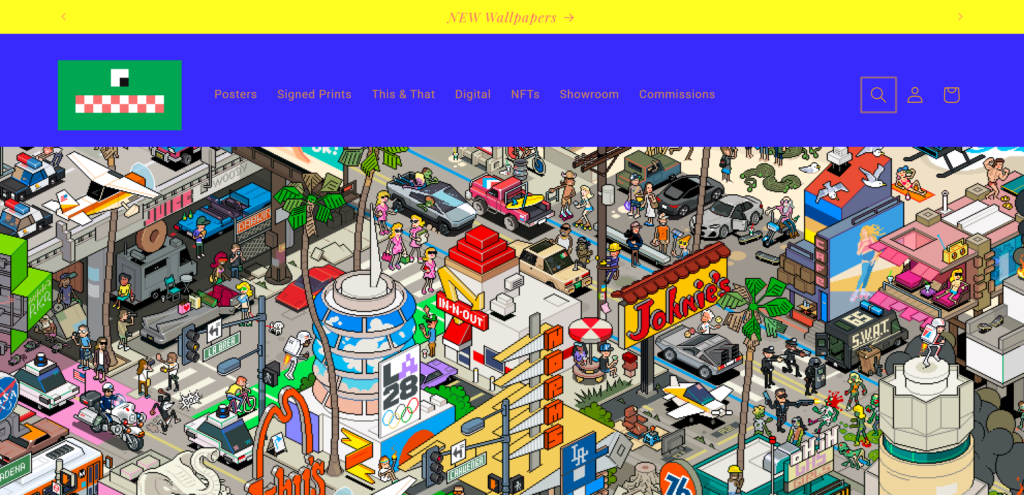
eBoy is a pixel art studio, and its site title says it plainly: Pixel Art Since 1997: Commissions and Posters. The menu is built around what you can buy, with Posters, Signed Prints, Digital, and NFTs, while a Commissions page covers client work and a Showroom page invites visitors to the studio in Berlin.
If selling is your main goal, organizing the menu by product type makes shopping easy, though it works best once people already know your style.
12. Sam Spratt
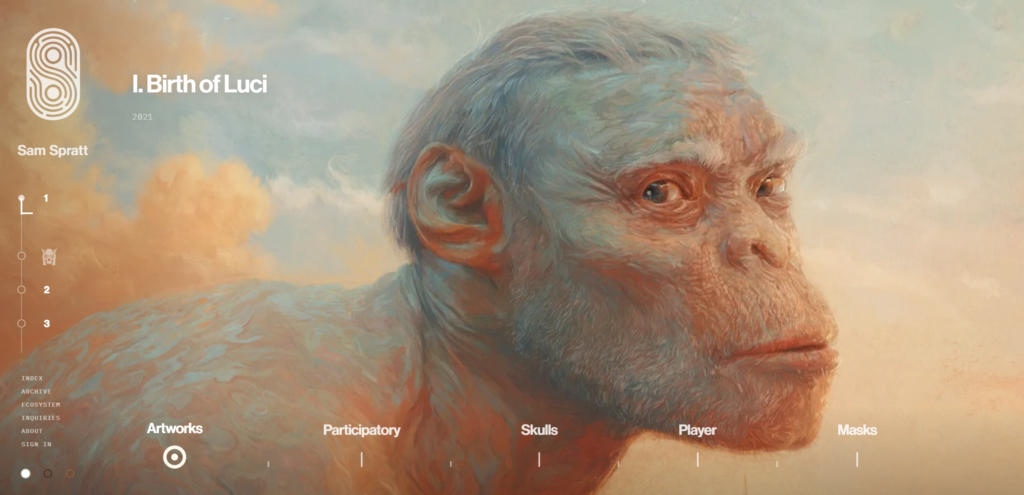
Sam Spratt’s site is an archive of one body of work, LUCI, which the site describes as ten digital paintings and 613 masks. The ten paintings are numbered I to X and grouped into six chapters, and each one fills the screen.
Index, Archive, Exhibitions, Biography, and Inquiries pages sit around the paintings.
Treating a series as chapters gives a long-running project the weight of a book.
Across all twelve sites, the strongest ideas are about organization rather than budget, which means you can borrow most of them on a first website.
Build a Portfolio That Fits Your Art
Envira Gallery lets you sort your art into galleries, pick a layout, and open every piece in a lightbox, all from your WordPress dashboard and without code.
What the Best Digital Art Portfolios Have in Common
Put the twelve side by side and a few habits repeat. None of them depend on a fancy design, which is good news if you’re building your first site.
These are the five habits that showed up most often:
- Work grouped the way clients think. Loish separates original, rough, and client work, and Raphael Lacoste groups his by project.
- Big images and small menus. Most of these sites keep the menu to a handful of links and let the art fill the screen.
- A way to see the detail. Simon Stålenhag links every image to a larger file, and Chris Labrooy lets you open each image full size.
- A home for motion. Beeple and Goro Fujita both give films and animation their own pages instead of mixing them into the stills.
- A clear next step. Nearly every site links to a shop, Patreon, or a contact page from the main menu.
You don’t need all five on day one. I’d start with the grouping, since it shapes every page you build after it.
How to Build Your Own Digital Art Portfolio Website on WordPress
If you’d rather own your site than rent space on a platform, WordPress is a good home for a digital art portfolio. You control the design, and a gallery plugin takes care of the part that matters most to an artist: how the work looks.
I’ll use Envira Gallery, the WordPress gallery plugin, for the examples below. You build every gallery with drag and drop, and our beginner’s guide to Envira Gallery covers the first setup.
To show you what each step looks like, I put together a small demo portfolio with three galleries of 3D and digital art: Characters, Dreamscapes, and Isometric Rooms. The artwork is free to use from Unsplash, so picture your own pieces in its place.
Pick a Layout That Suits Your Digital Art
The free version of Envira Gallery gives you the Automatic layout, which lines your pieces up in neat rows, plus control over the number of columns. Every paid plan adds the rest of the layouts, including Mason for a masonry look like Loish’s, Grid, Square, and Bento Grid for a moodboard-style mix of tile sizes.
As a rough guide, masonry suits illustrations in mixed shapes, because nothing gets cropped. Square crops every piece to an identical tile, which looks tidy for a big series but trims the edges of each image. Our tutorial on building a masonry image gallery walks through the first option.
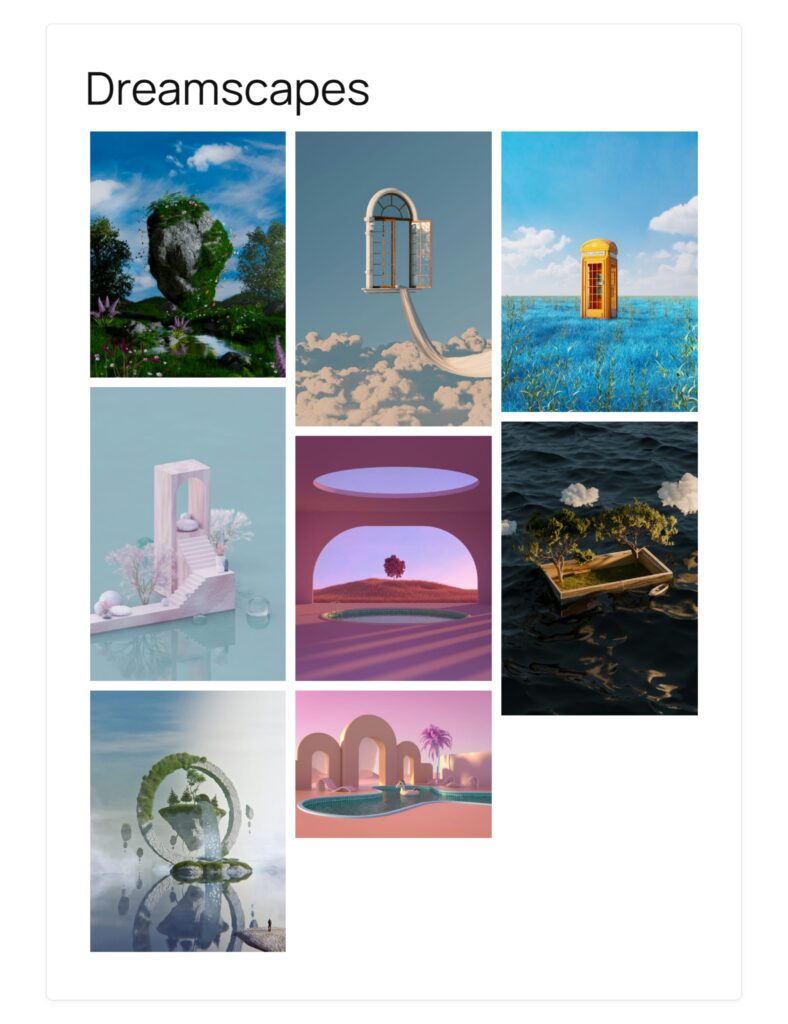
Here’s the Dreamscapes gallery from the demo in the Mason layout. Every piece keeps its original shape, and the columns fit together like a moodboard.
Whichever layout you pick, each piece opens in Envira’s built-in lightbox, so visitors can see it large without leaving the page. Our guide to adding a lightbox to WordPress images covers the lightbox settings, and on the Plus plan and above, Lightbox Zoom lets visitors zoom in on fine detail.
Organize Your Digital Art Into Categories and Albums
Most of the strongest examples split their work into groups. With Envira, each group can be its own gallery, such as Characters, Environments, and Sketches.
On the Plus plan and above, Image Tagging and Filterable Galleries let you tag pieces and add filter buttons above a single gallery, much like Sachin Teng’s Editorial and Posters buttons. Our tutorial on making a filterable gallery portfolio shows how it’s done.
On Pro plans and above, the Albums addon groups those galleries into albums with cover images, so visitors choose a category first, the way Goro Fujita’s medium tiles work. Here’s how to create an album in WordPress step by step.
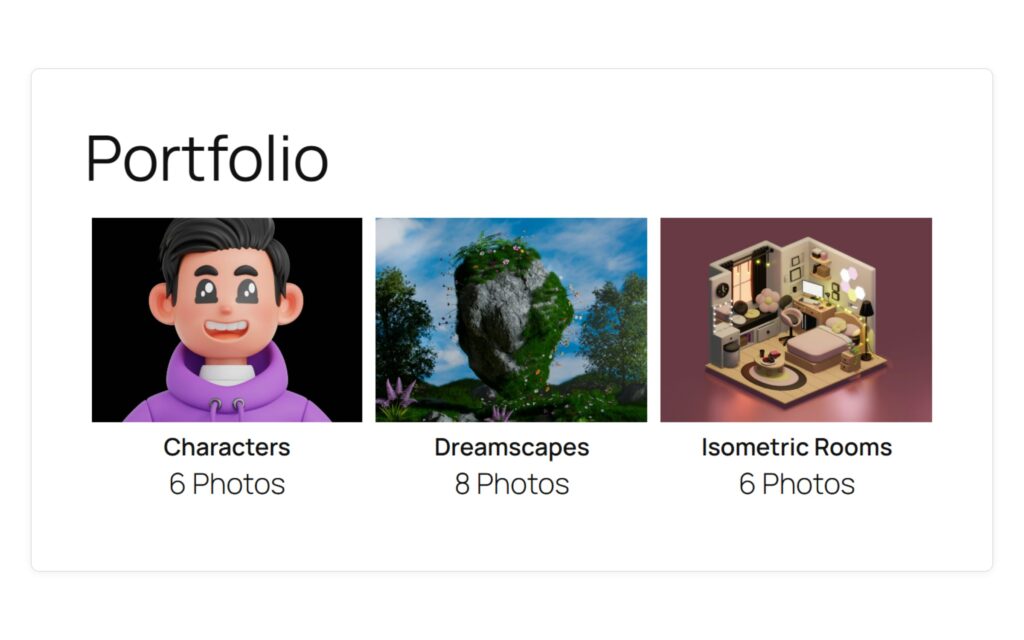
And here’s the whole demo portfolio as an album. Visitors see one cover per gallery, with its title and number of images, and click through to the one they want.
If one gallery grows long, Pagination (Plus and above) splits it into pages the way Anna Dittmann’s gallery works, and our guide to a gallery with pagination explains the settings.

Johnny Rodgers
I use this plugin on two of my websites and will soon be installing it on a third one. It is simple to install and manage while offering great results. It is now my go-to plugin for galleries whether they are for portfolios, case studies or simply photos related to the website topic.
Add Video to Your Digital Art Portfolio
Animators, motion designers, and 3D artists often need clips next to their stills. On Pro plans and above, Video Galleries let you add YouTube or Vimeo videos, or your own video files, to the same gallery as your images. Our guide to creating a WordPress video gallery walks through it.
If you also post on Dribbble, the Dribbble Addon (Pro and above) builds a gallery from your Dribbble shots, so you don’t have to upload the same piece twice.
Protect Your Digital Artwork
Posting art online always carries some risk of it being copied. Envira adds layers of protection as you move up the plans, so you can match the protection to the work.
Here’s what each protection feature does and which plan includes it:
- Image Protection (Basic and above): turns off right-click downloads on your galleries.
- Watermarking (Plus and above): adds a text or image watermark to your WordPress images, so your name travels with every piece.
- Password Protection (Plus and above): locks a gallery so only people with the password can see it. Here’s how to password protect a gallery.
None of these makes copying impossible, but together they stop casual downloads and keep your name on anything that gets shared.
Once your work is protected, the next step most of the artists above take is selling it.
Sell Prints and Downloads From Your Digital Art Portfolio
Almost every portfolio in this list sells something, whether prints, books, or files. You can sell digital copies straight from your galleries with Envira Payments, which connects to Stripe so buyers pick a download size and pay on a secure checkout page without creating an account.
Envira Payments works on every paid plan. Basic and Plus carry a 5% transaction fee on top of Stripe’s own fee, and Pro plans and above remove it.
For physical prints, or if you’d rather run a full store, Digital Downloads and the WooCommerce Integration come with Pro plans and above. Our tutorial on how to sell photos on WordPress covers the setup, and the same steps apply to digital art.
If you license your art rather than sell prints, Image Licensing (Pro and above) adds your terms below a gallery, so buyers know exactly how they can use each piece.
Give Your Digital Art the Portfolio It Deserves
Start with a free gallery, then add albums, watermarks, and sales as your portfolio grows.
FAQs About Digital Art Portfolios
What should a digital art portfolio include?
Your strongest finished pieces, grouped in a way that makes sense for the work you want, plus an About page and an easy way to contact you. Many of the artists above also add sketches, process work, or a shop. I’d leave out anything you wouldn’t be happy to be hired for.
How many pieces should a digital art portfolio have?
There’s no fixed number, and quality matters more than volume. I’d start with 15 to 20 of your best pieces and swap out weaker ones as new work comes in. If you have a lot more, split it into categories so no single page feels endless.
Do I need my own website if I’m already on ArtStation or Behance?
Those platforms are good for being discovered, but your own site lets you decide the layout, the order of your work, and what visitors do next. Most of the artists in this list link to their social profiles while keeping their main portfolio on their own domain.
How can I protect my digital art online?
Nothing stops a determined copier, but you can make it harder. Blocking right-click downloads, adding a watermark, and keeping private work behind a password all help. In Envira Gallery, Image Protection comes with Basic and above, while Watermarking and Password Protection come with Plus and above.
Can I sell my digital art from a WordPress portfolio?
Yes. With Envira Payments, visitors can buy digital copies of your images straight from your galleries through a Stripe checkout, on any paid Envira plan. To sell physical prints or run a full store, Pro plans and above include Digital Downloads and the WooCommerce Integration.
What is the best layout for a digital art portfolio?
It depends on the shape of your work. A masonry layout suits a mix of portrait and landscape pieces, while a grid of matching tiles suits a consistent series. Most artists in this list keep the layout simple so the art stays the focus.
Every portfolio above makes the work easy to explore, and you can build the same thing on your own site. For more ideas from photographers, be sure to check out our roundup of photography websites for inspiration.
Not using Envira Gallery yet? Get started today!
Don’t forget to follow us on Facebook and X (Twitter) for the best photography tips, resources, and WordPress tutorials.